Arzuz Creation

Professional Graphic Design and Editing

Advanced Colour Grading in Adobe Photoshop 2026

Advanced Colour Grading in Adobe Photoshop 2026,

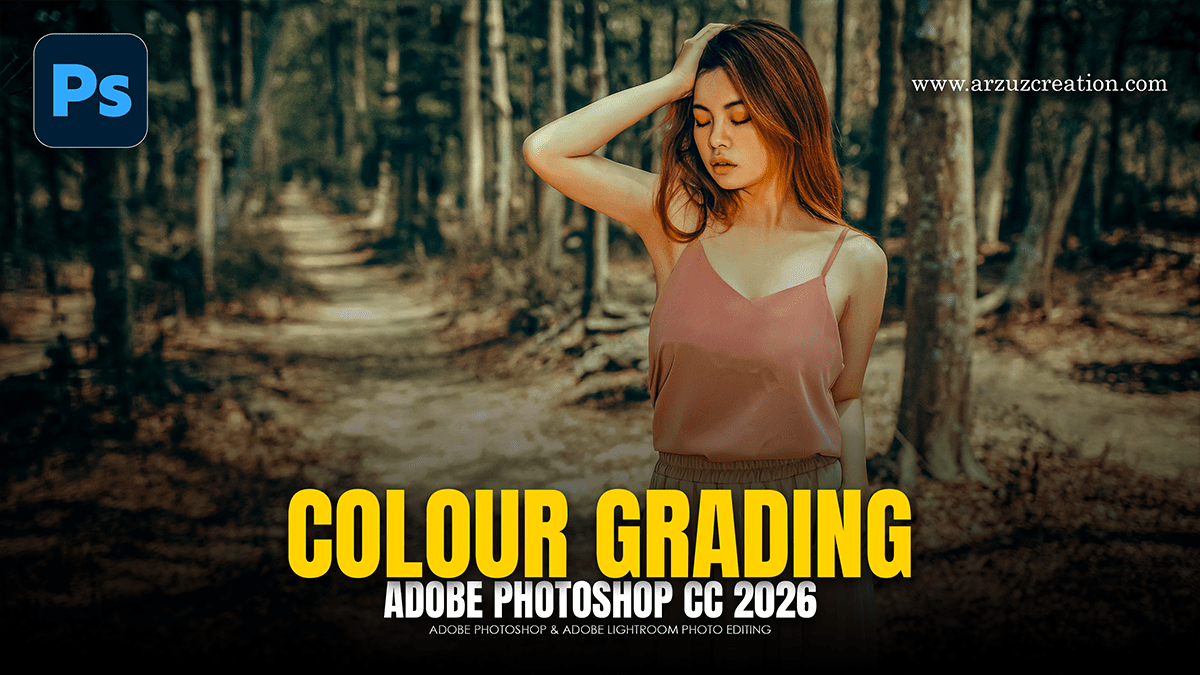
Advanced color grading in Photoshop is about moving beyond simple sliders and learning to manipulate color balance across specific tonal ranges (Shadows, Midtones, and Highlights).

Unlike color correction, which focuses on making an image look “natural,” color grading is a stylistic choice used to evoke a specific mood or cinematic feel.
How do I use Photoshop to match the Color Grade?

How do I use Photoshop to match the Color Grade?

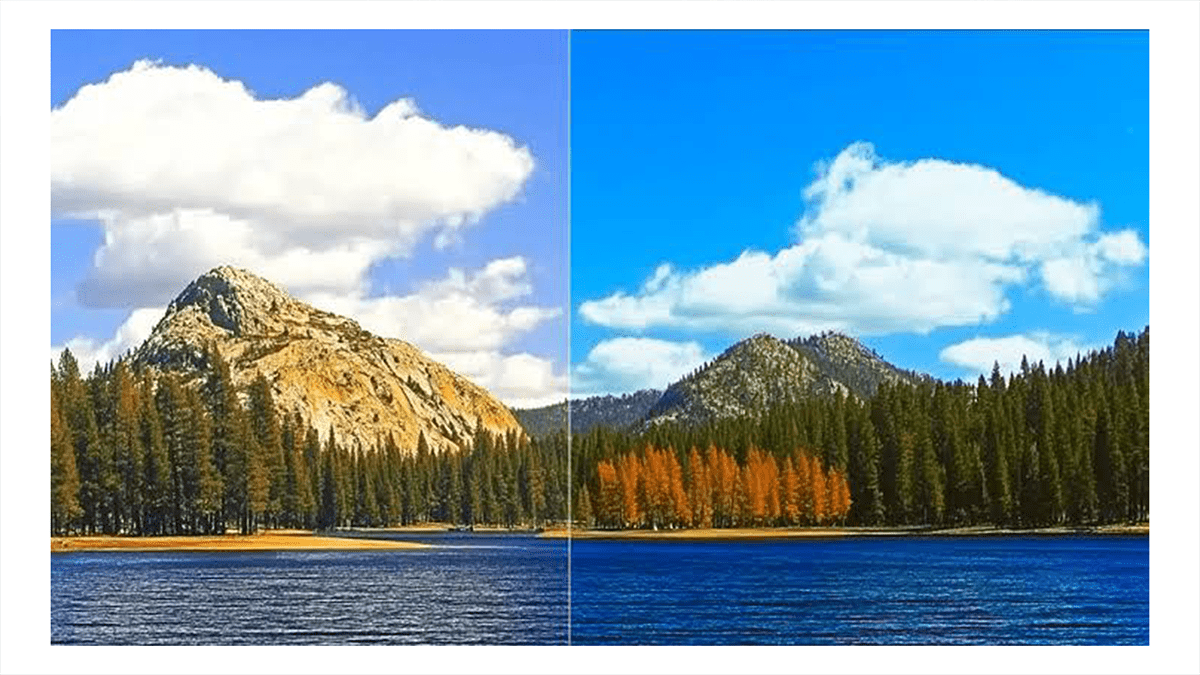
Matching the color grade of a reference image—whether it’s a shot from a Hollywood movie or a portrait by a favorite photographer—is one of the fastest ways to elevate your work. The goal is to analyze the color distribution of the target image and replicate its shadow, midtone, and highlight values onto your own photo.

Professional Photo Colour Grading Photoshop

Professional Photo Colour Grading Photoshop,

Professional color grading is what separates a snapshot from a cinematic, high-end image. While color correction fixes exposure and white balance to make an image look realistic, color grading is an artistic choice that establishes mood, style, and narrative.

Color Grade a Photo in Photoshop using Adjustment Curves?

Color Grade a Photo in Photoshop using Adjustment Curves?

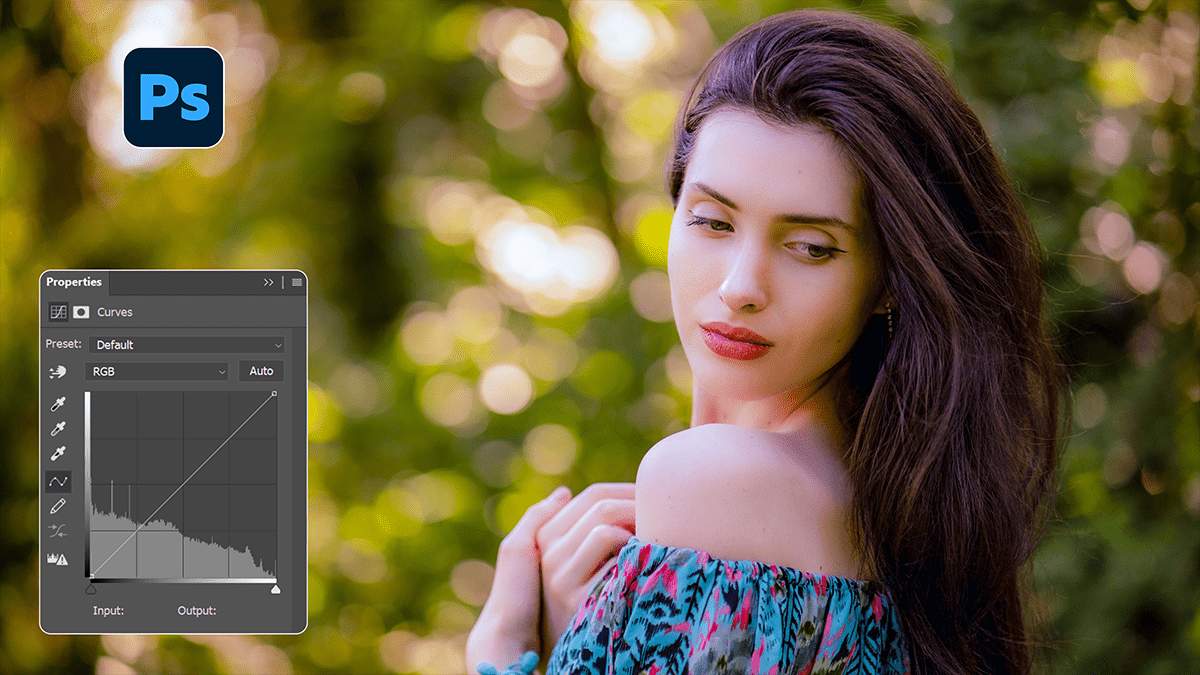
Color grading with Curves is one of the most powerful techniques in Photoshop. It is the same method Hollywood colorists use to grade film.

While the master RGB curve changes brightness, switching to the individual Red, Green, and Blue channels allows you to inject specific colors directly into your highlights, midtones, and shadows.

Moody Cinematic Color Grade in Photoshop 2026

Moody Cinematic Color Grade in Photoshop 2026,

To get that classic “dark, moody cinematic” look, aim for deep, slightly desaturated tones, crushed shadows, and strong color contrast—usually leaning into cool greens, teals, or deep blues in the dark areas, while keeping skin tones or highlights relatively warm.

Make sure your image layer is converted to a Smart Object, open the Camera Raw Filter, and apply these specific settings.

Professional Photo Editing Using Adobe Photoshop Curves 2026

Professional Photo Editing Using Adobe Photoshop Curves 2026,

Mastering the Curves adjustment is often the “ah-ha!” moment for professional editors. While Levels allows you to adjust three points (Blacks, Midtones, Whites), Curves gives you total control over the entire tonal range and individual color channels.

Professional Skin Retouching Adobe Photoshop Tutorial 2026

Professional Skin Retouching: Adobe Photoshop Tutorial 2026,

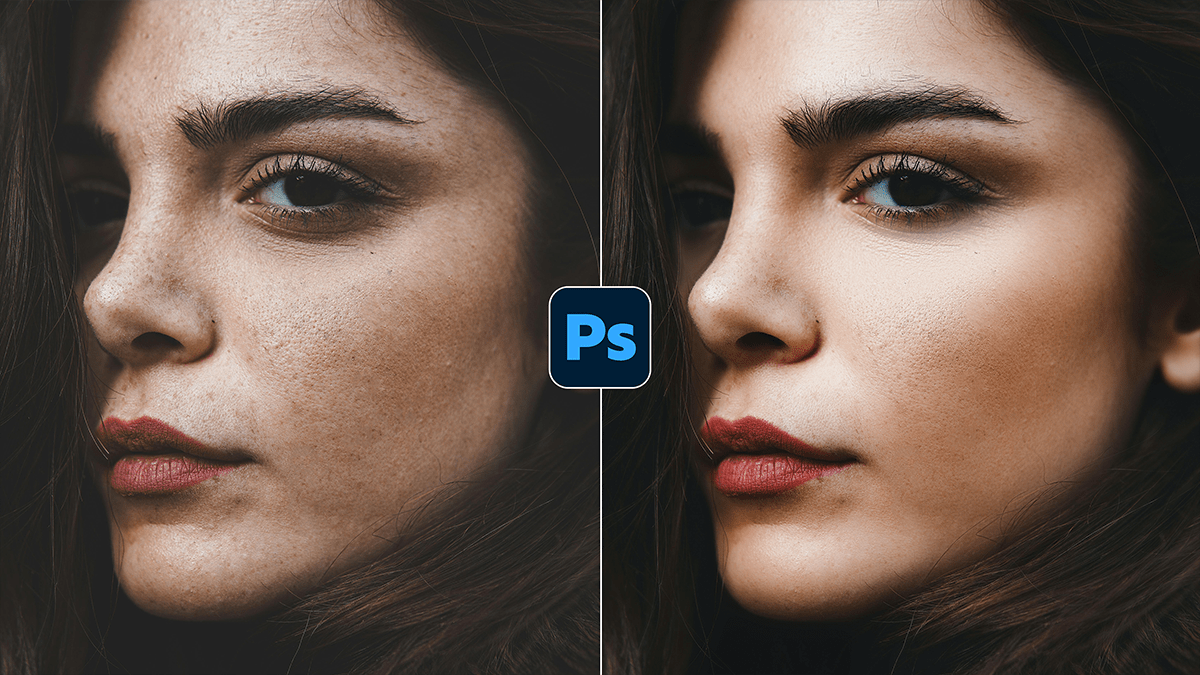
Professional skin retouching is a balancing act. The goal is to remove distractions while preserving the natural texture of the skin (the “pores”). If you go too far, you end up with the dreaded “uncanny valley” plastic look.

Camera Raw Photoshop: Professional Photo Editing 2026

Camera Raw Photoshop: Professional Photo Editing 2026,

Adobe Camera Raw (ACR) is a powerful, built-in Photoshop plugin for processing raw, JPEG, or TIFF images, offering Lightroom-style, non-destructive editing tools like exposure, masking, and color correction. Accessed via the “Filter” menu, it enables advanced adjustments—including AI-powered tools—on smart objects for flexible, reversible editing.

Photoshop Gradient Tool: Professional Photo Editing

Photoshop Gradient Tool: Professional Photo Editing,

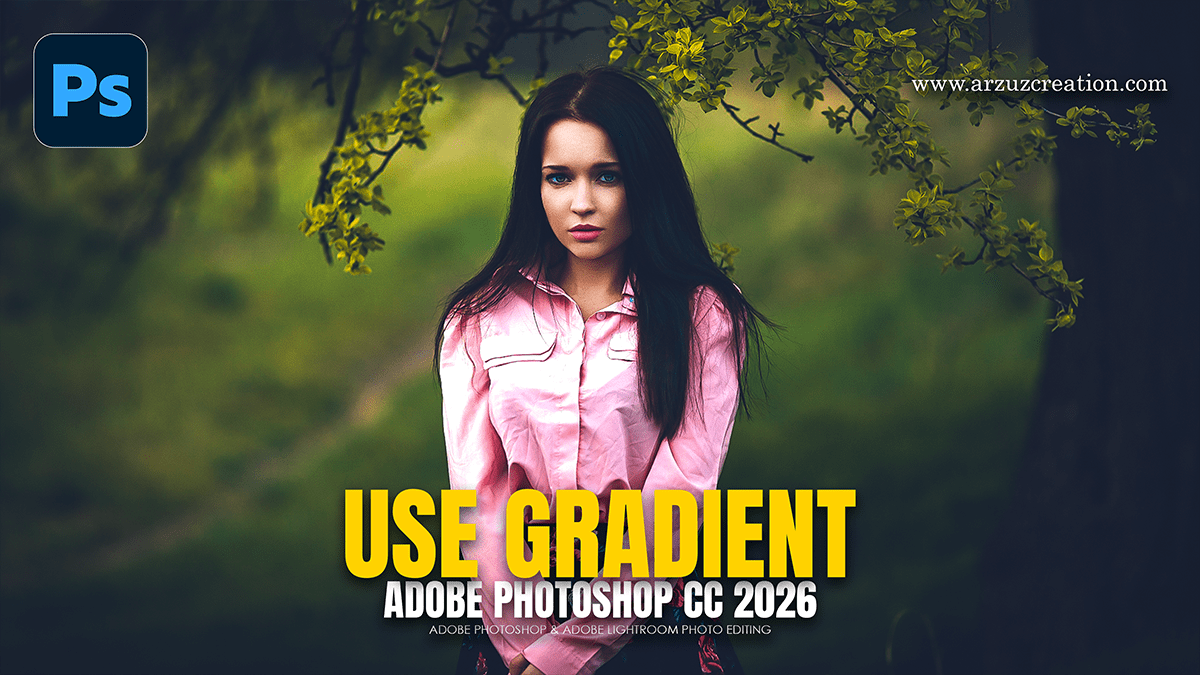
The Photoshop Gradient Tool (\(G\)) creates smooth color transitions between multiple colors or transparency. Activated via the toolbar, it offers Linear, Radial, Angle, Reflected, and Diamond types, with modern, live-editable, on-canvas controls for adjusting colors, angles, and midpoints. Key options include reverse, dither for smoother blends, and opacity adjustments.

Photoshop Move Tool Use: Professional Editing

Photoshop Move Tool Use: Professional Editing,

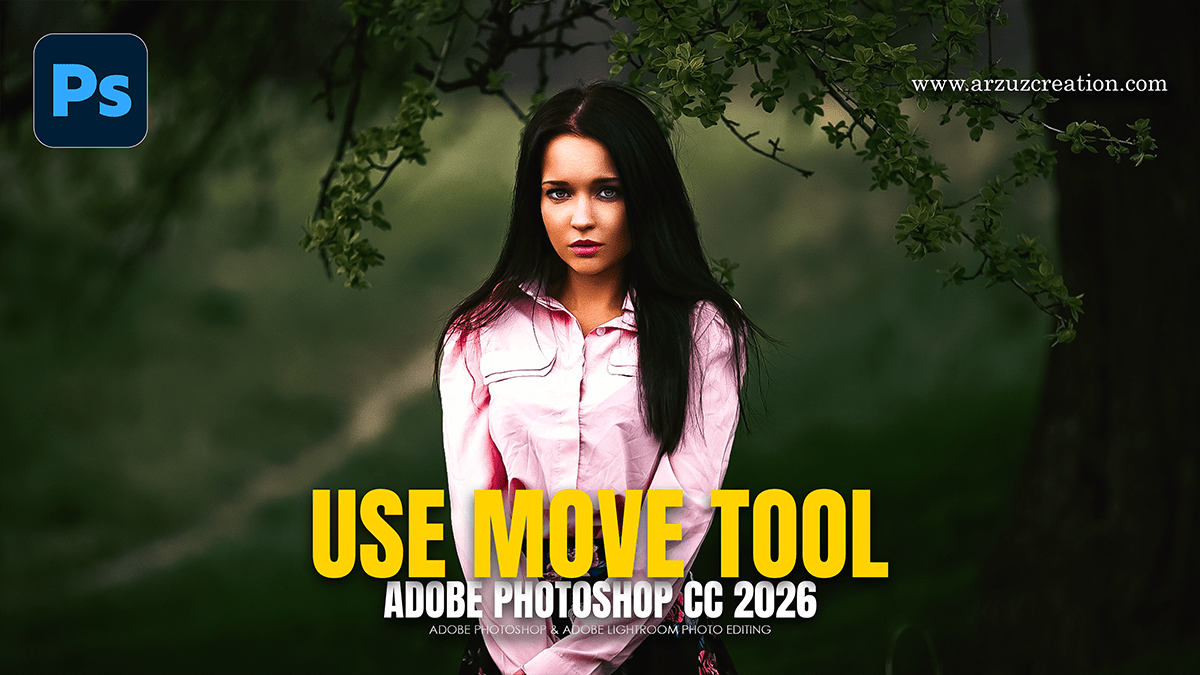
The Move Tool (shortcut: V) is primarily used to position layers, selections, and artboards within your workspace. Beyond just dragging objects, it manages how you interact with different elements and helps align multiple objects perfectly.

How to Apply an Adjustment Layer to one Layer in Photoshop

How to Apply an Adjustment Layer to one Layer in Photoshop,

To apply an adjustment layer to only one layer in Photoshop, use a clipping mask. Place the adjustment layer directly above your target layer, then hold Alt (Windows) or Option (Mac) and click on the line between the two layers. Alternatively, click the square icon with a downward arrow in the Properties panel.

How to Add an Adjustment Layer in Adobe Photoshop 2026

How to Add an Adjustment Layer in Adobe Photoshop 2026,

To add an adjustment layer in Photoshop, click the Create new fill or adjustment layer icon (half-black, half-white circle) at the bottom of the Layers panel and select your desired adjustment. Alternatively, go to Layer > New Adjustment Layer or use the Adjustments panel. This creates a non-destructive layer above your image, allowing you to edit colors or tones using the Properties panel.

Photoshop Adjustment Layers: Pro Editing For Beginners

Photoshop Adjustment Layers: Pro Editing For Beginners,

Adjustment Layers are the cornerstone of professional, non-destructive photo editing in Adobe Photoshop. Unlike direct image adjustments, these layers act as “filters” that sit above your original pixels, allowing you to tweak colors and tones without permanently altering the source file.

Adobe Camera Raw Filter: 18.3 Version New Features

Adobe Camera Raw Filter 18.3 Version New Features,

The April 2026 release (Version 18.3) of Adobe Camera Raw (ACR) focuses on expanding masking precision, correcting specialized lens distortions, and providing new creative presets.

Photoshop: Wedding Photo Color Grading Tutorial

Photoshop Wedding Photo Color Grading Tutorial,

Professional wedding photo color grading in Photoshop requires a balance between technical precision and artistic consistency. The goal is typically to achieve timeless skin tones while maintaining the emotional “mood” of the event.

Camera Raw 18.3 Color Grading Update Features

Camera Raw 18.3 Color Grading Update Features,

The April 2026 update for Adobe Camera Raw (18.3) doesn’t introduce a complete overhaul of the Color Grading panel itself. Still, it does add several high-impact features that directly influence your grading workflow.

How to Professional Photo Editing in Adobe Photoshop 2026

How to Professional Photo Editing in Adobe Photoshop 2026,

Professional photo editing in Adobe Photoshop is a balance of technical precision and artistic subtlety. The goal is usually to enhance the subject’s natural features while maintaining a clean, high-end aesthetic.

Colour Grading Technique Adobe Photoshop 2025

Colour Grading Technique Adobe Photoshop 2025,

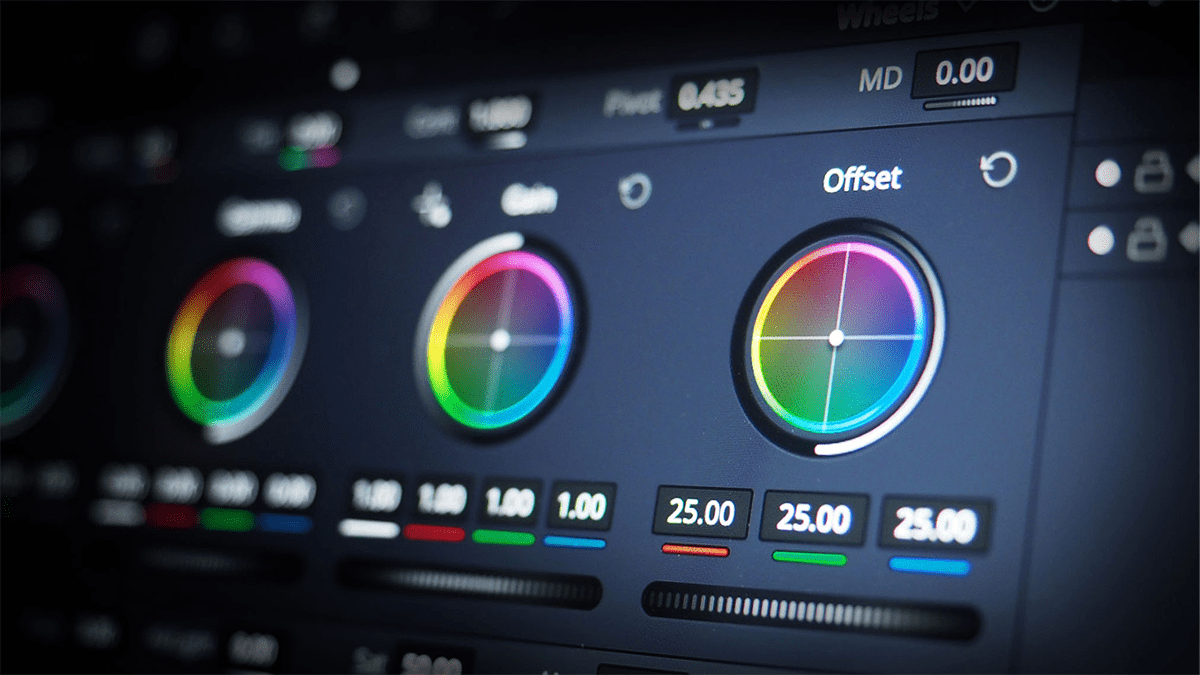
Color grading in Adobe Photoshop via the Camera Raw Filter (CRF) is primarily handled through the Color Grading panel, which utilizes a three-way wheels system to adjust Shadows, Midtones, and Highlights independently.

2026 Wedding Photo Editing Workflow in Adobe Lightroom Classic

2026 Wedding Photo Editing Workflow in Adobe Lightroom Classic,

For professional wedding photography in 2026, the standard workflow leverages Lightroom for high-volume management and Photoshop for high-end “hero” shots. Modern updates have introduced powerful AI tools that significantly reduce the time spent on manual retouching.

Photoshop Camera Raw New Updates

Photoshop Camera Raw New Updates,

The April 2026 update for Adobe Camera Raw (v18.3) and Photoshop 2026 has introduced significant shifts in how color grading and spatial adjustments are handled. The most notable change is the migration of “RAW-exclusive” tools directly into the Photoshop Layers panel as non-destructive adjustment layers.