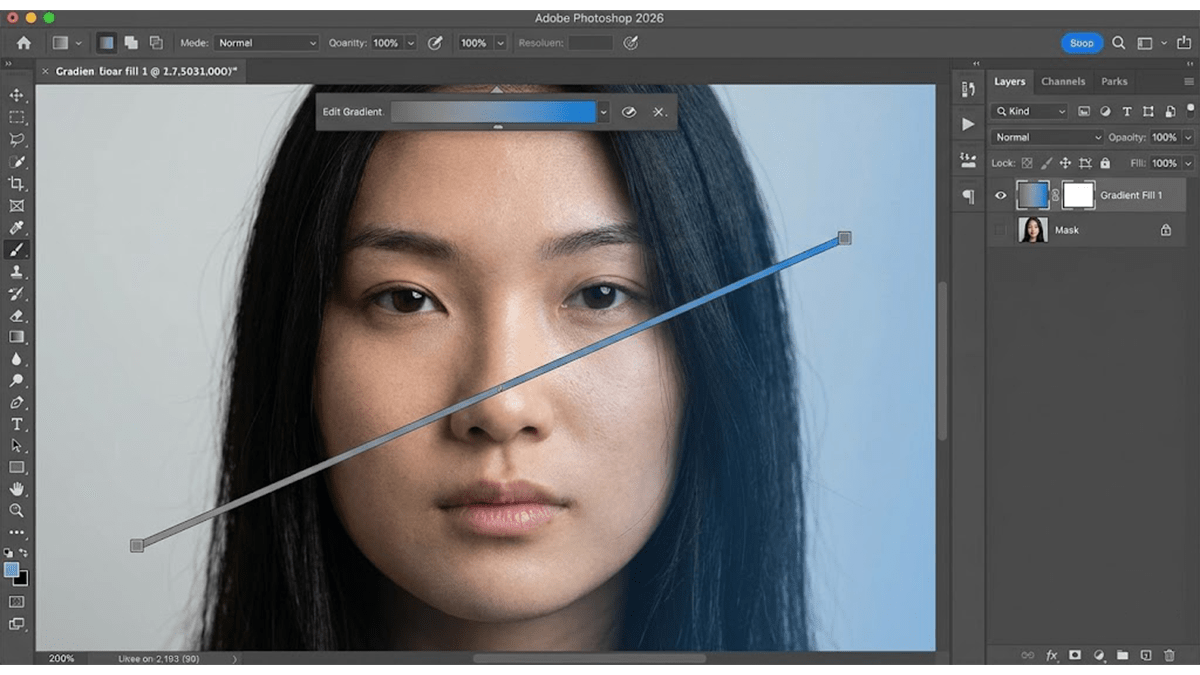
Using the Gradient Tool Change Colour in Adobe Photoshop 2026,

Therefore, using the Gradient Tool is one of the best ways to give a background some depth and energy.
In other words, Recent versions of Photoshop use a live, non-destructive Gradient Layer system by default. This means when you draw a gradient, you can easily tweak the colors, angle, and positions directly on your canvas at any time.
Using the Gradient Tool Change Colour in Adobe Photoshop 2026,
The Workflow:
1. Create a Gradient Fill Layer: Layers panel.
Therefore, instead of using the basic tool from the left toolbar, go to the bottom of your Layers Panel and click the New Adjustment Layer icon (the half-filled circle). Select Gradient… from the menu. This creates a dedicated background layer that you can change later.
2 . In other words, open the Gradient Editor: Options bar / Properties.
Therefore, A properties window will appear. Click directly on the gradient color preview bar to open the advanced Gradient Editor.
3. Build Your Multi-Color Blend: Adding color stops.
In other words, look at the smooth color bar at the bottom of the editor window.
Change existing colors: Double-click any of the small square “stops” underneath the color bar to open the color picker and change that specific shade.
Add more colors: Click anywhere underneath the space along the color bar to drop a brand new color square. You can add as many as you want to build a true multi-color rainbow or sunset look.
Move colors: Click and drag the squares left or right to control how quickly the colors blend into each other.
Using the Gradient Tool Change Colour in Adobe Photoshop 2026,
4. Choose the Style and Draw: Canvas adjustment.
However, click OK to close the editor. Now, choose your gradient style from the dropdown menu:
Linear: Blends colors in a straight line (great for classic horizons).
Radial: Blends colors outward in a circular pattern (great for a spotlight effect).
However, you can now click and drag the line directly on your active canvas to adjust the angle and length of the blend.
Using the Gradient Tool Change Colour in Adobe Photoshop 2026,
Pro-Tips for Perfect Blends:
Watch out for banding: When blending multiple distinct colors over a large background, you might notice ugly “stripes” instead of a smooth blend. Check the Dither box in your gradient options panel to blend pixels smoothly and eliminate this artifact.
Use Pre-made Palettes: Photoshop comes packed with gorgeous multi-color folders (like Pastels, Purples, or Iridescents). Before building one from scratch, expand those folders in the Gradient Editor to see if a professional blend already matches your vibe.
Keep it subtle: If you’re placing text or a subject over this background, try to avoid high-contrast neon colors right next to each other, as it can make the background distracting.
