Adobe Photoshop Background Colouring Method for Beginners,

Therefore, The best way to color a background in Photoshop depends entirely on whether you are starting a brand new document or trying to change the background of an existing image.
In other words, Here are the absolute easiest ways to do both.
Adobe Photoshop Background Colouring Method for Beginners,
Method 1: For an Existing Image (Solid Color Layer)
Therefore, This is the cleanest, most professional method because it uses a non-destructive “Adjustment Layer”. It lets you change the color as many times as you want later without ruining your original photo.
1. Select the Subject: Optional but helpful.
Therefore, If your image has a subject (like a person or object), go to the top menu and select Select > Subject. Photoshop will automatically draw a selection around them.
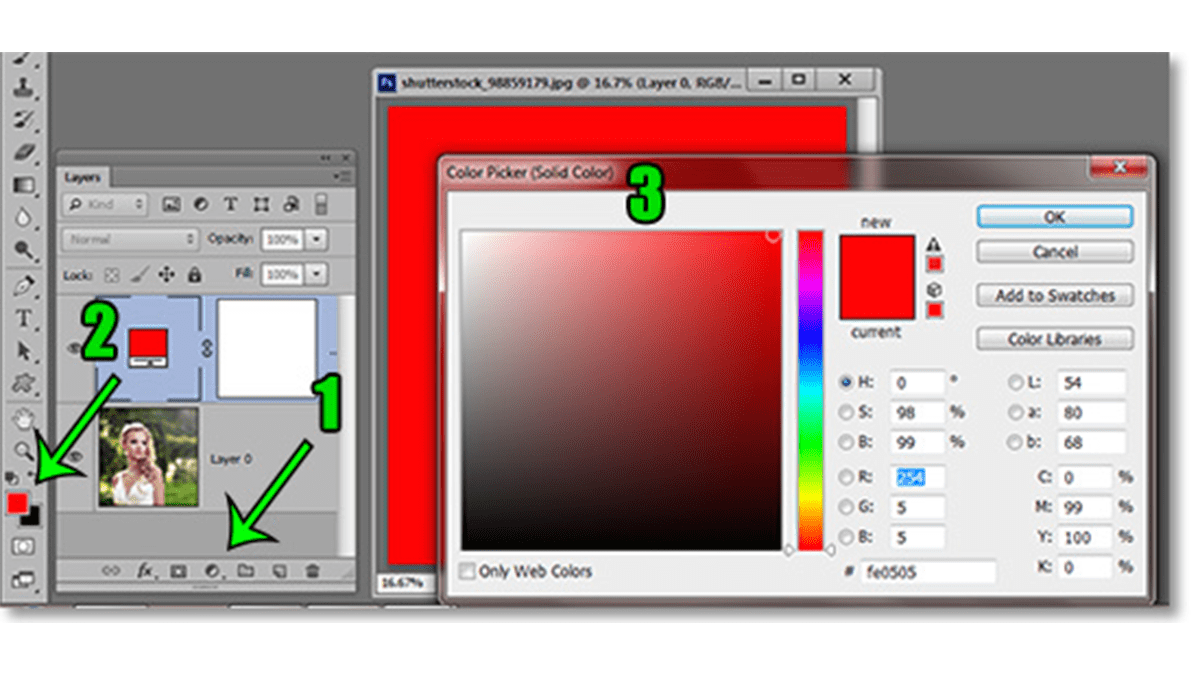
2. Create a Solid Color Layer: Bottom of Layers Panel.
In other words, Look at your Layers panel (usually on the bottom right). Click the New Adjustment Layer icon (it looks like a half-filled circle) and choose Solid Color… from the pop-up list.
3. Pick Your Color: Color Picker window.
In other words, A Color Picker window will pop up instantly. Click around the main color box or use the vertical slider to find the exact shade you want, then click OK.
4 . Rearrange the Layers: Adjusting layer order.
However, If your background color covers up your entire image, don’t panic! In your Layers panel, simply click and drag your new “Color Fill” layer underneath your main subject layer.
Adobe Photoshop Background Colouring Method for Beginners,
Method 2: The Fast “Cheat Codes” (Keyboard Shortcuts)
However, If you just have a blank canvas or a separate background layer selected, you can fill it instantly using hotkeys based on your color swatches (the two overlapping squares at the bottom of your left-hand toolbar).
Fill with Foreground Color: Press Alt + Backspace (Windows) or Option + Delete (Mac).
Fill with Background Color: Press Ctrl + Backspace (Windows) or Cmd + Delete (Mac).
Method 3: Starting a Fresh Project:
However, if you are just starting and want your canvas to be a specific color right out of the gate:
- Go to File > New.
- On the right side of the preset details panel, look for Background Contents.
- By default, it is usually set to White. Click the dropdown menu to change it to Black, Transparent, or click the little color square to select a custom color.
- Hit Create.
