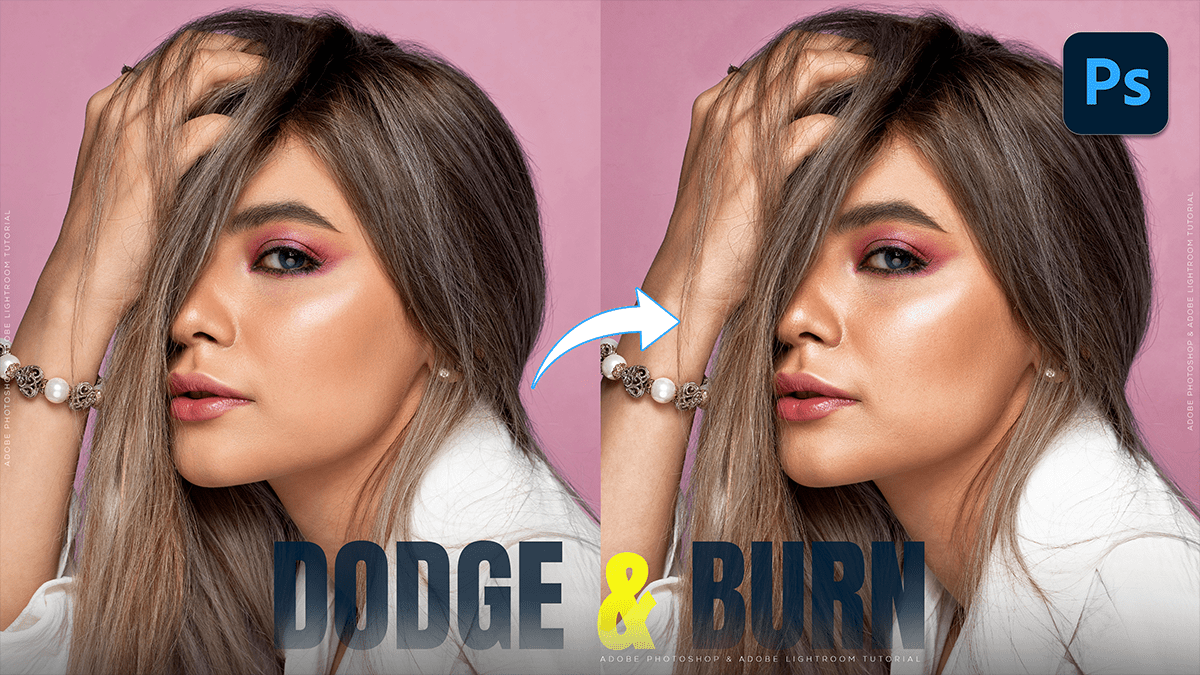
Dodge and Burn: Using Photoshop Levels Adjustment Layer 2026,
Therefore, using Levels Adjustment Layers for dodging and burning is a professional, non-destructive alternative to the standard Dodge and Burn tools. This method allows you to change the intensity of your edits at any time without damaging the original pixels.

Dodge and Burn: Using Photoshop Levels Adjustment Layer 2026,
Therefore, here is the step-by-step process to set this up.
1. Create the “Dodge” Layer (To Lighten)
Therefore, go to the Adjustments Panel and click the Levels icon (or go to Layer > New Adjustment Layer > Levels).
In other words, in the Properties Panel, move the Middle (Midtones) Slider to the left. This will make the entire image look brighter. Don’t worry; we will hide this in the next step.
Therefore, rename this layer to “Dodge”.
In other words, select the layer mask (the white box next to the Levels icon) and press. Ctrl + I (Win) or Cmd + I (Mac) to invert it to black. The brightening effect will disappear.
Dodge and Burn: Using Photoshop Levels Adjustment Layer 2026,
2. Create the “Burn” Layer (To Darken)
Therefore, repeat the process: Create another Levels Adjustment Layer.
In other words, in the Properties Panel, move the Middle (Midtones) Slider to the right. The image will get darker.
Therefore, rename this layer to “Burn”.
In other words, select the layer mask and press Ctrl + I (Win) or Cmd + I (Mac) To invert it to black.
3. Painting the Effect
Therefore, to apply the light and shadow, you will paint on the black masks with a white brush:
In other words, select the Brush Tool (B).
However, set your Foreground Color to White (press D then X).
However, choose a Soft Round Brush (Hardness at 0%).
Crucial Step: Lower the Opacity or Flow of your brush to a very low setting (around 5–10%). This allows you to build the effect gradually.
To Dodge: Click the black mask of the “Dodge” layer and paint over the highlights or areas you want to pop.
To Burn: In other words, click the black mask of the “Burn” layer and paint over shadows or areas you want to recede.
Dodge and Burn: Using Photoshop Levels Adjustment Layer 2026,
Pro Tips for Better Results
| Tip | Benefit |
| Layer Opacity | If the effect looks too strong, simply lower the Opacity of the entire layer in the Layers Panel. |
| Blend If | Double-click the layer (to the right of the name) to open Layer Styles. Use “Blend If” to prevent the Dodge layer from affecting pure blacks or the Burn layer from muddying pure whites. |
| Naming & Grouping | Select both layers and press Ctrl/Cmd + G to group them. You can then toggle the whole group on/off to see the before-and-after. |
Would you like me to explain how to use “Blend If” to make these adjustments look even more natural?
