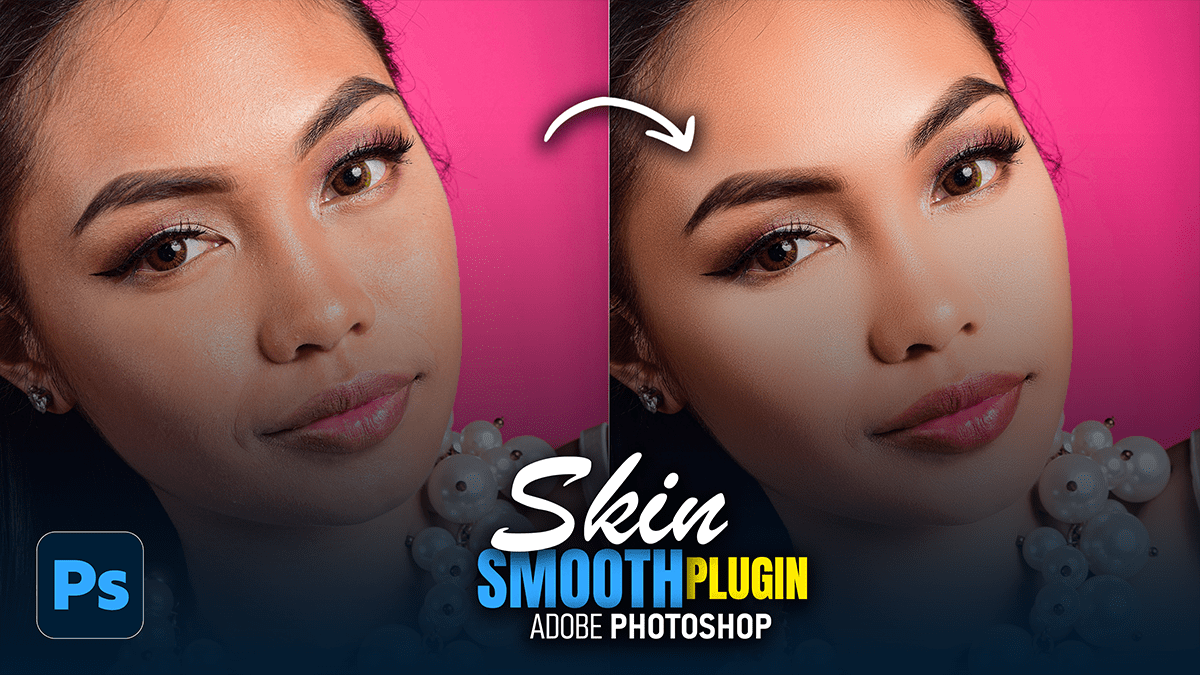
Adobe Photoshop 2026 Smoothing Plugin Tutorial For Beginners

Therefore, using a Photoshop plugin is the “fast track” to high-end retouching. While manual methods like Frequency Separation give you total control, plugins use AI and advanced algorithms to save you hours of tedious brushing.
Adobe Photoshop 2026 Smoothing Plugin Tutorial For Beginners
In other words, here is a breakdown of the top tools and their effective use.
1. Top Plugins for Smooth Skin:
Therefore, depending on your budget and style, these are the industry leaders:
| Plugin | Best For… | Key Feature |
| Portraiture 4 (Imagenomic) | Speed & Batching | Unbeatable skin masking; very fast workflow. |
| Retouch4me Heal/Skin | Natural Realism | Uses neural networks to fix spots without touching texture. |
| Beence Skin Finer | Color Consistency | Excellent for evening out skin tones and redness. |
| Boris FX Optics | Stylized Retouching | Includes “Beauty” filters that mimic high-end diffusion. |
2. The Standard Workflow:
Therefore, regardless of which plugin you choose, follow these steps to ensure the skin doesn’t look like “plastic.”
Adobe Photoshop 2026 Smoothing Plugin Tutorial For Beginners
Step 1: Prep the Base:
In other words, never run a plugin on your “Background” layer.
However, Press Ctrl+J (Win) or Cmd+J (Mac) to duplicate your layer.
In other words, manually remove large blemishes using the Healing Brush Tool ($J$). Plugins work best on texture, not huge distractions.
Step 2: Run the Plugin:
However, launch your plugin (usually under the Filter menu).
Create a Mask: Use the plugin’s eyedropper tool to select the skin tones. This prevents the plugin from smoothing out eyes, hair, or clothing.
Adjust “Fine” vs. “Large”: Most plugins have sliders for different detail sizes. Lower the “Fine” smoothing to keep the pores visible.
Step 3: Refine in Photoshop:
However, this is the secret to professional results:
Lower Opacity: Once the plugin applies the effect, go to your Layers panel and drop the opacity to about 70-80%. This lets a bit of the original texture peak through.
Layer Mask: Add a black mask (Alt/Opt + Click the Mask icon) and paint white over only the skin areas to ensure the eyes and lips stay tack-sharp.
Adobe Photoshop 2026 Smoothing Plugin Tutorial For Beginners
3. Pro Tips for Natural Results:
Avoid the “Plastic” Look: If the skin looks too smooth, use the Add Noise filter (1-2%) on the retouched layer to simulate natural film grain or skin texture.
Fix the Color, Not Just Texture: In addition, Plugins like Skin Finer allow you to adjust the “Uniformity” of the color. Often, “bad” skin is just uneven redness, not actually rough texture.
A Note on Realism: However, High-end retouching is about reducing distractions, not erasing humanity. Always check your work by toggling the layer visibility ($Visibility$ icon) to make sure the person still looks like themselves!
Would you like me to walk you through how to do professional skin smoothing manually using Frequency Separation instead?
