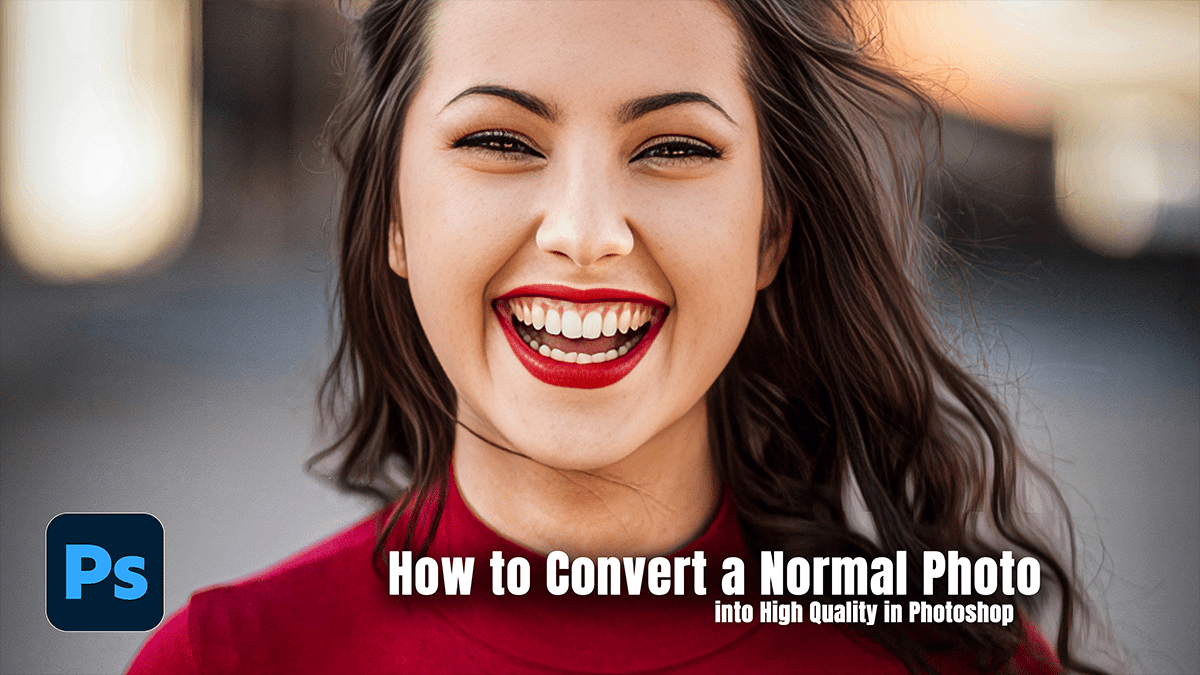
How to Convert a Normal Photo into High Quality in Photoshop

Therefore, turning a low-resolution or “normal” photo into a high-quality masterpiece in Photoshop is a mix of AI-powered upscaling and manual refinement. Since we can’t magically create pixels that weren’t there, we use “interpolation” to guess what those missing pixels should look like.
How to Convert a Normal Photo into High Quality in Photoshop
In other words, here is the most effective workflow to sharpen and upscale your images.
1. The “Super Resolution” Upscale:
Therefore, before you do anything else, you need to increase the pixel count. Photoshop’s Preserve Details 2.0 and Neural Filters are the gold standards here.
Go to Image > Image Size.
Resample: In other words, change this to Preserve Details 2.0. (If you don’t see it, enable it in Preferences > Technology Previews).
Increase Dimensions: Therefore, change the width/height (usually to 200% or 300%).
Reduce Noise: Slide this up until the “graininess” disappears without making the skin look like plastic.
2. Clean Up with Neural Filters:
Therefore, if the photo is old or has “JPEG artifacts” (those blocky squares), Photoshop has an AI tool specifically for this.
In other words, go to Filter > Neural Filters.
However, Turn on Photo Restoration. This will automatically enhance faces and remove scratches.
In other words, turn on JPEG Artifacts Removal and set it to “High” to smooth out compression issues.
How to Convert a Normal Photo into High Quality in Photoshop 2026,
3. Smart Sharpening:
However, Generic sharpening can make a photo look “crunchy” and cheap. Instead, use a High Pass Filter for a professional look:
Duplicate your layer (Ctrl+J or Cmd+J).
However, Go to Filter > Other > High Pass.
Above all, adjust the radius until you just see the outlines of the details (usually between 1.0 and 3.0). Click OK.
However, Change the Layer Blend Mode from “Normal” to Overlay or Linear Light.
Lower the Opacity if the effect is too harsh.
4. Camera Raw Adjustments:
Above all, Final “quality” often comes down to lighting and color depth rather than just resolution.
Press Ctrl+Shift+A (Cmd+Shift+A) to open the Camera Raw Filter.
Texture & Clarity: Increase these slightly to make edges pop.
Dehaze: Use this sparingly to remove “fog” or washiness from low-quality sensors.
Masking: Use the “Select Subject” mask to sharpen only the person, leaving the background soft.
How to Convert a Normal Photo into High Quality in Photoshop 2026,
Pro Tips for Best Results:
| Feature | Why use it? |
| Smart Objects | Right-click your layer and “Convert to Smart Object” first so you can tweak filters later without losing data. |
| Avoid Over-Sharpening | If you see white “halos” around edges, you’ve gone too far. |
| 8-bit vs 16-bit | If you’re doing heavy color grading, go to Image > Mode > 16 Bits/Channel to prevent color banding. |
Would you like me to walk you through how to use the “Generative Fill” tool to recreate missing parts of a low-quality background?
