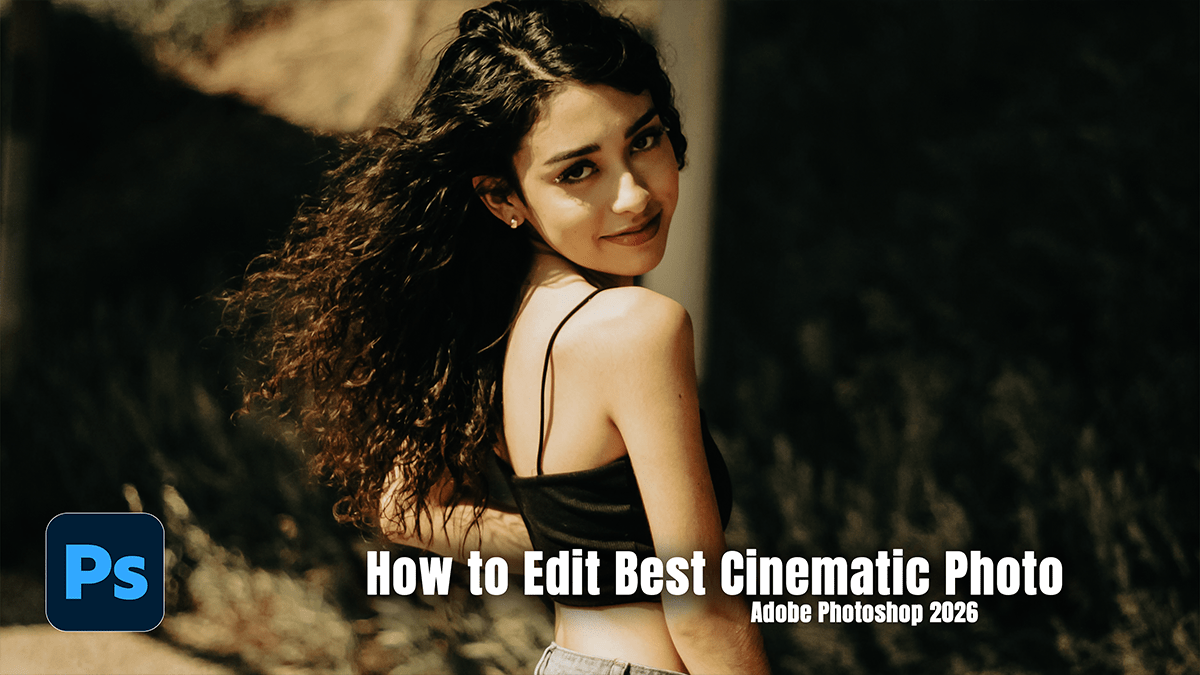
How to Edit Best Cinematic Photo in Adobe Photoshop 2026,

Therefore, editing a “cinematic” photo in Adobe Photoshop 2026 has become significantly more streamlined thanks to the new dedicated adjustment layers and enhanced AI capabilities. The goal of a cinematic look is usually to emulate high-end film stock—think deep shadows, “teal and orange” color palettes, and realistic film grain.
How to Edit Best Cinematic Photo in Adobe Photoshop 2026,
In other words, here is the updated workflow for 2026:
1. Preparation and Composition:
Therefore, the cinematic look starts with the “widescreen” feel.
Aspect Ratio: Crop your photo to a cinematic ratio, such as 16:9 or the ultra-wide 2.35:1 (Anamorphic).
Generative Expand: In other words, if your photo is too tight, use the Crop Tool and pull the edges out. In the Contextual Task Bar, select the Nano Banana or Firefly model to fill in the extra background space realistically.
2. Advanced Tonal Control (New Adjustment Layers)
Therefore, Photoshop 2026 introduced new sliders as standalone adjustment layers, meaning you no longer have to jump into Camera Raw for every tweak.
Color and Vibrance Layer: In other words, go to Layer > New Adjustment Layer > Color and Vibrance. Use the Temperature slider to cool down the image (Blues) or warm it up (Ambers).
Dehaze & Clarity: Therefore, add these as adjustment layers to either add “atmosphere” (lowering Dehaze creates a misty, cinematic glow) or “grit” (increasing Clarity).
Curves (The “Film Fade”): Therefore, create a Curves layer and lift the bottom-left point (Blacks) slightly upward. This “crushes” the blacks into a dark gray, giving that classic matte film aesthetic.
How to Edit Best Cinematic Photo in Adobe Photoshop 2026,
3. Cinematic Color Grading:
In other words, this is where the “movie magic” happens.
Color Balance: Push Cyan and Blue into the Shadows and Yellow and Orange into the Highlights. This creates the complementary color contrast seen in Hollywood blockbusters.
Harmonize (AI Tool): If you are compositing subjects, use the updated Harmonize button in the Contextual Task Bar. It uses AI to match the lighting and color temperature of your subject to the background automatically.
Color Lookup (LUTs): However, apply an Color Lookup adjustment layer. Look for presets like Fuji Eterna or Kodak 5218 to instantly apply professional film emulations.
4. Final Textures and Effects:
Grain Adjustment Layer: Use the new Grain Adjustment Layer (introduced in early 2026). It allows you to add non-destructive film grain that looks much more organic than the old “Add Noise” filter.
AI Denoise / Sharpen: However, if your photo was shot in low light, use the Topaz-powered AI Denoise (found under Image > Generative Upscale or the Filter menu) to clean up sensor noise while keeping the details sharp.
Vignette: However, use a soft, large black brush on a new layer (set to Soft Light or Overlay) to subtly darken the edges, drawing the eye toward the subject.
How to Edit Best Cinematic Photo in Adobe Photoshop 2026,
Summary of New 2026 Tools for Cinematic Editing:
| Feature | Location | Why use it for Cinematic look? |
| Color & Vibrance Layer | Layer > New Adjustment Layer | Direct access to Temp/Tint without Camera Raw. |
| Nano Banana Model | Generative Fill/Expand | High-fidelity AI for expanding cinematic scenery. |
| Grain Layer | Adjustment Layers panel | Adds a realistic “analog” texture to the digital image. |
| Topaz Upscale | Image > Generative Upscale | Makes low-res shots look like high-budget 4K stills. |
Would you like me to walk you through a specific “Teal and Orange” color grade setup using the new adjustment layers?
