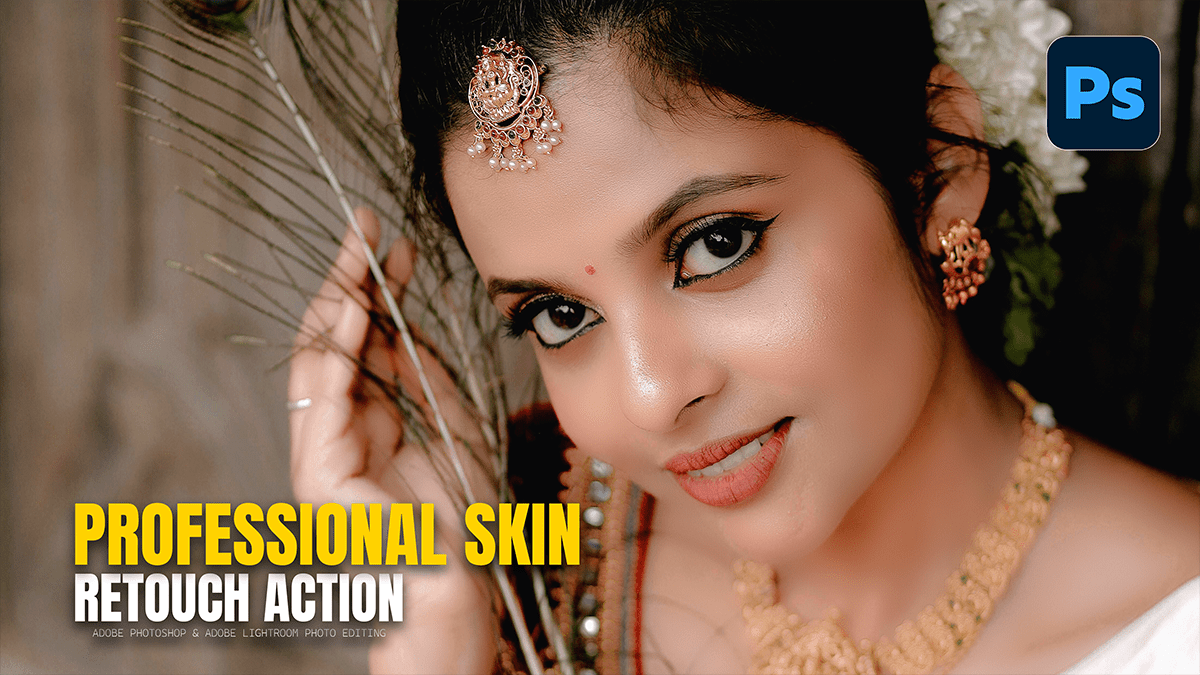
Adobe Photoshop CC 2026 Skin Retouching Tutorial,

Therefore, in Adobe Photoshop 2026, professional-grade skin retouching for beginners has shifted toward a “hybrid” workflow. You can now combine traditional precision tools with new AI-driven adjustment layers to get clean, natural results in a fraction of the time.
Here is a beginner’s guide to a professional, non-destructive workflow for 2026.
Adobe Photoshop CC 2026 Skin Retouching Tutorial,
1. Clean-Up: The AI Remove Tool:
Therefore, before smoothing, you must remove “distractions” (blemishes, stray hairs, or acne).
The Tool: In other words, select the Remove Tool (found under the Healing Brush group).
Why it’s better: However, in the 2026 update, this tool uses an enhanced Firefly model that understands skin texture better than the old Spot Healing brush.
How to use: In other words, create a New Blank Layer and check Sample All Layers in the top bar. Simply paint over a blemish; the AI will replace it with “clean” skin that matches the surrounding lighting and pores.
2. Tonal Evening: New “Clarity & Dehaze” Adjustment Layer:
However, one of the major 2026 updates is the addition of Clarity & Dehaze as a dedicated Adjustment Layer (previously only in Camera Raw).
The Goal: Above all, to subtly soften the skin’s midtone transitions without losing sharpness in the eyes.
How to use: 1. However, open the Adjustments Panel and select Clarity and Dehaze.2. Move the Clarity slider to the left (negative) to “soften” the skin.3. Pro Tip: Use the Layer Mask (the white box next to the adjustment) and hit Ctrl+I to turn it black. Then, use a soft white brush to “paint” the softening only onto the skin, avoiding the eyes, lips, and hair.
Adobe Photoshop CC 2026 Skin Retouching Tutorial,
3. The “High-End” Secret: Frequency Separation (Simplified)
Above all, Professional retouchers separate “Texture” from “Color.” This allows you to fix blotchy skin tones without making the skin look like plastic.
Low Frequency (Color/Tone): In addition, Blur this layer so you only see the colors. Use the Lasso Tool with a high feather (around 20px) on the skin, then apply Gaussian Blur until the blotchiness disappears.
High Frequency (Texture): In addition, this layer holds the pores and fine lines. You can use the Clone Stamp (at 20% Opacity) on this layer to “move” clean texture over a bumpy area without changing the color underneath.
4. Finishing: The “Grain” Adjustment Layer:
After that, A common beginner mistake is making the skin too smooth. Photoshop 2026 introduced a Grain Adjustment Layer to fix this.
Why: Similarly, if an area looks “fake” or overly processed, adding a tiny amount of grain can simulate natural skin pores.
How: After that, add the Grain Adjustment Layer at the very top of your stack and set the intensity to a very low value (2–5%).
Adobe Photoshop CC 2026 Skin Retouching Tutorial,
Comparison of Retouching Methods:
| Feature | Remove Tool (AI) | Frequency Separation | Neural Filters |
| Skill Level | However, Beginner | Intermediate | Beginner |
| Best For | Acne, stray hairs | High-end portraits | Fast social media edits |
| Texture | Excellent | Perfect | Can look “plastic” |
In conclusion, would you like me to walk you through how to set up the Frequency Separation layers step-by-step?
