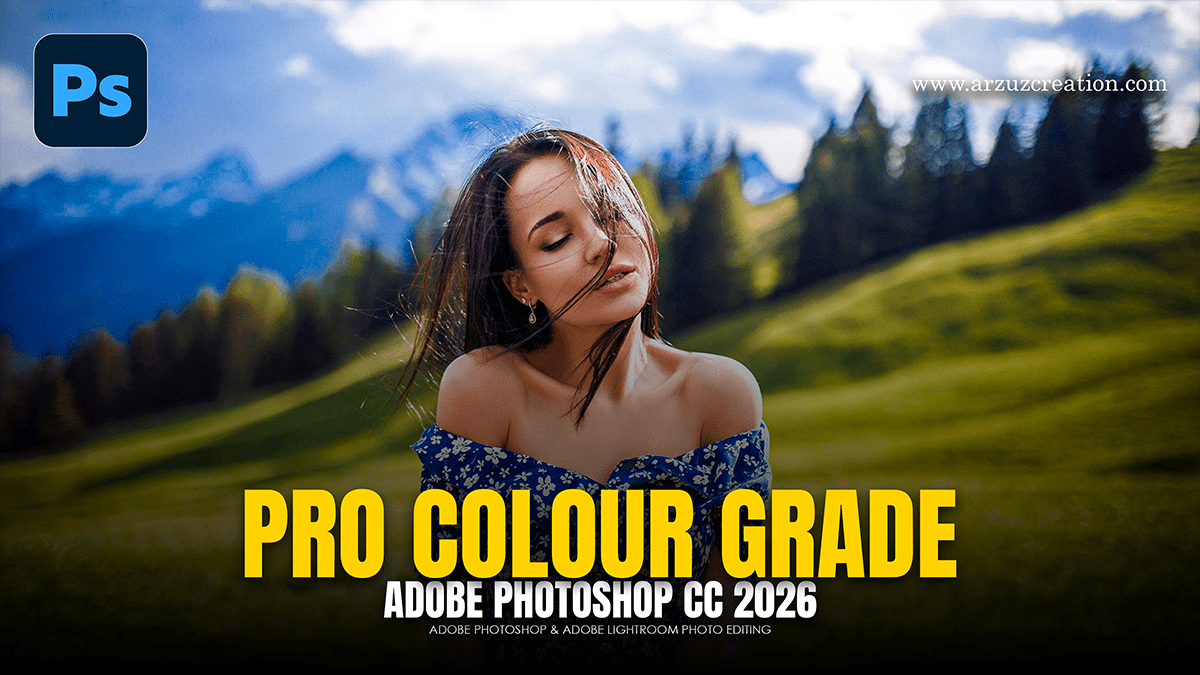
Professional Photo Colour Grading Photoshop,

Therefore, Professional color grading is what separates a snapshot from a cinematic, high-end image. While color correction fixes exposure and white balance to make an image look realistic, color grading is an artistic choice that establishes mood, style, and narrative.
In other words, the industry-standard, non-destructive workflow in Photoshop utilizes the Camera Raw Filter, Color Wheel,s and precise Adjustment Layers.
The Professional Color Grading Workflow:
1. The Foundation: Camera Raw Color Wheels:
Therefore, the most intuitive and powerful tool for grading is the Color Grading panel inside the Camera Raw Filter. It allows you to target the three main tonal ranges of your image independently.
1. Open Camera Raw: Preparation.
Therefore, convert your background layer into a Smart Object (Right-click layer -> Convert to Smart Object). This ensures your grading remains completely editable. Go to Filter -> Camera Raw Filter.
Professional Photo Colour Grading Photoshop,
2. Grade the Shadows: Establish the Base Mood.
In other words, navigate to the Color Grading panel (the three-wheel icon). Click on the Shadows wheel. Drag the center point toward your desired color.
Pro Tip: Therefore, Cinematic styles often favor cool tones (cyan, teal, or deep blue) in the shadows to give the image weight.
3 . In other words, Grade the Highlights: Create Harmonious Contrast.
However, switch to the Highlights wheel. Drag the center point toward a color that complements your shadows.
Pro Tip: To achieve the classic cinematic “teal and orange” look, push your highlights toward a warm amber or gold to counteract the cool shadows.
4. Balance and Bl: Fine-Tuning.
However, use the Blending slider at the bottom to control how much the highlight and shadow colors overlap in the midtones. Use the Balance slider to shift the priority toward either the shadow grade or the highlight grade. Click OK.
Professional Photo Colour Grading Photoshop,
Advanced Photoshop Adjustment Layers:
However, once your primary grade is set in Camera Raw, you can use specialized adjustment layers back in your main workspace to refine the aesthetic.
Color Lookup (LUTs)
For instance, Color Lookup tables apply preset mathematical color maps to your image instantly.
However, create a Color Lookup adjustment layer from the bottom of the Layers panel.
For instance, browse the drop-down menu (e.g., 3DLUT File) to find options like Crisp_Warm, LateSunset, or TealGold.
The Pro Move: Drop the layer Opacity down to 20–40% so the LUT subtly enhances your underlying grade rather than overpowering it.
Selective Color:
For instance, this is the secret weapon for managing tricky areas like skin tones or foliage.
Above all, create a Selective Color adjustment layer.
For instance, choose Rethink/Whites/Blacks or specific color channels from the dropdown menu.
Above all, for cleaner skin tones, go to the Reds and Yellows dropdowns and subtly decrease the Cyan slider to introduce warmth, or adjust Yellow to keep skin from looking too saturated or muddy.
Professional Photo Colour Grading Photoshop,
Curves (The Precise Alternative)
Above all, if you prefer numeric precision over visual wheels, individual RGB curves offer ultimate control.
In addition, create a Curves adjustment layer.
Above all, change the channel dropdown from RGB to an individual color channel (e.g., Blue).
In addition, drag the bottom-left of the curve (Shadows) upward to inject blue into the dark tones, or drag the top-right (Highlights) downward to remove blue and introduce yellow into the bright tones.
The Golden Rule of Color Grading: Always keep an eye on your Info Panel or your scopes. Beautiful color grading can be intense, but it should never clip your blacks into complete darkness or blow out your highlight details entirely.
