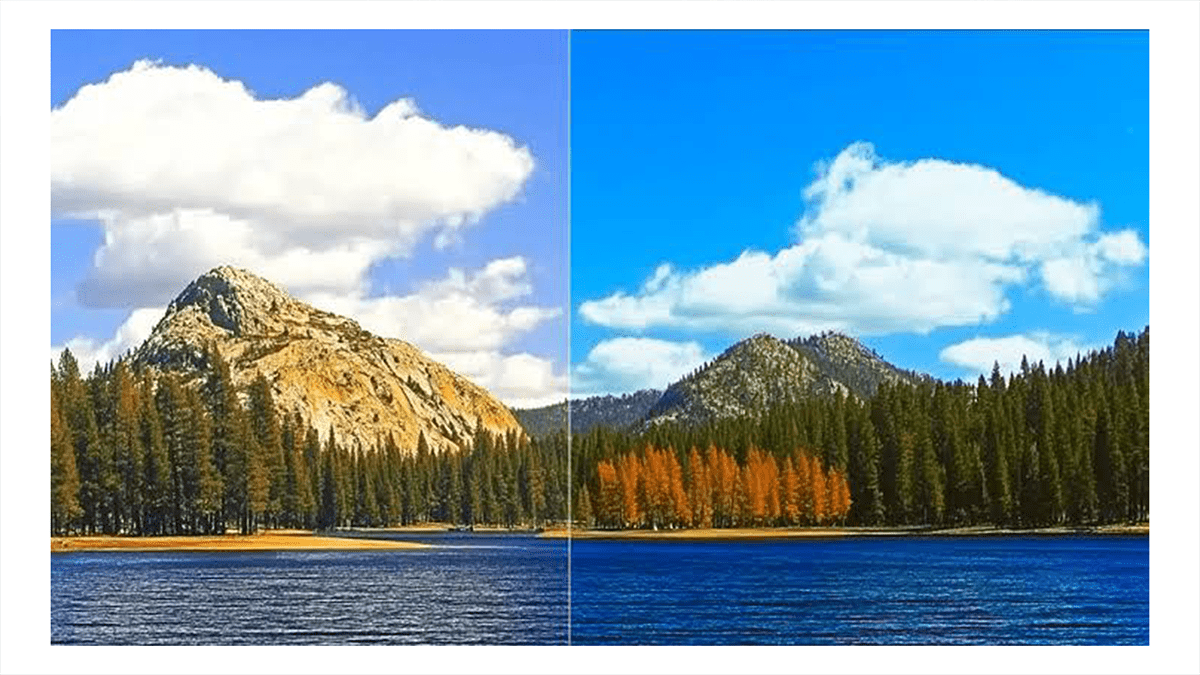
How do I use Photoshop to match the Color Grade?

Therefore, matching the color grade of a reference image—whether it’s a shot from a Hollywood movie or a portrait by a favorite photographer—is one of the fastest ways to elevate your work. The goal is to analyze the color distribution of the target image and replicate its shadow, midtone, and highlight values onto your own photo.
In other words, here is the professional, step-by-step workflow to match color grades accurately in Photoshop.
How do I use Photoshop to match the Color Grade?
Step 1: Set Up Your Workspace:
Therefore, to match a grade, you need to see both images clearly and side-by-side.
In other words, open your target image (the movie scene) and your source image (your photo) in Photoshop.
Therefore, go to Window > Arrange > 2-Up Vertical. This places both images side-by-side.
In other words, select three distinct areas from your movie reference: the absolute darkest point (Shadow), a neutral gray point (Midtone), and the brightest non-blown-out point (Highlight).

2. Set the Curve Target Points:
Therefore, create a Curves adjustment layer over your photo.
Double-click the Black Eyedropper tool (the top icon inside the Curves properties panel).
However, your cursor will turn into an eyedropper, and a color picker will pop up. Move your cursor over to the Movie Reference image and click on its deepest shadow. Click OK. (If a prompt asks “Save new target colors as defaults?”, click No).
Now, take that same Black Eyedropper and click on the deepest shadow of your photo. Watch the shadows instantly shift to match the exact color tint and black point of the movie frame.
How do I use Photoshop to match the Color Grade?
3. Match the Highlights and Midtones:
Double-click the White Eyedropper (the bottom icon). Click on the brightest point of the Movie Reference, click OK (choose “No” to defaults), and then click the brightest point of your photo.
Double-click the Gray Eyedropper (the middle icon). Find a neutral tone in the Movie Reference (like asphalt, a concrete wall, or a gray shirt). Click it, click OK, and then find a similar neutral area in your photo and click it.
However, your image’s overall color harmony will now mathematically lock into the palette of the movie scene.
How do I use Photoshop to match the Color Grade?
Step 4: Analyze with “Gradient Map” Check Layers
For instance, to see if your tones truly match without your eyes tricking you, you can use a professional cheat code: a black-and-white luminosity check layer.
However, create a Gradient Map adjustment layer at the very top of your layer stack. Set the gradient to standard black-to-white.
For instance, this strips away the color, leaving only the contrast and luminosity values visible on both images.
Above all, look at both images side-by-side. Is your image too bright in the midtones compared to the movie frame?
For instance, select your Curves layer beneath the Gradient Map, click the
Above all, click the master dropdown and cycle through specific channels (like Greens or Cyans).
In conclusion, adjust the Saturation slider to match the vibrancy of those specific colors in your movie reference. If the movie scene looks gritty and desaturated, pulling down the overall master saturation by 10–15% usually seals the deal.
