Advanced Colour Grading in Adobe Photoshop 2026,

Therefore, Advanced color grading in Photoshop is about moving beyond simple sliders and learning to manipulate color balance across specific tonal ranges (Shadows, Midtones, and Highlights).
In other words, unlike color correction, which focuses on making an image look “natural,” color grading is a stylistic choice used to evoke a specific mood or cinematic feel.
Advanced Colour Grading in Adobe Photoshop 2026,
1. The Power of Camera Raw Filter:
Therefore, while often used for basic edits, the Color Grading panel (formerly Split Toning) in the Camera Raw Filter (Filter > Camera Raw Filter) is the most intuitive “advanced” tool.
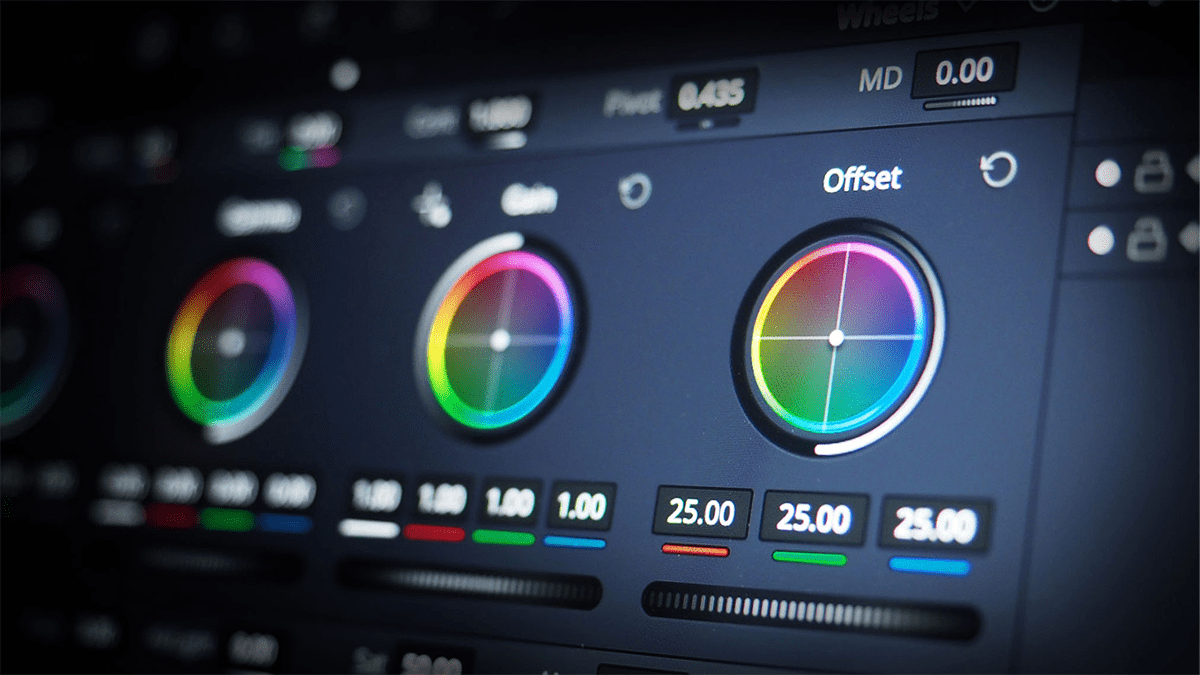
Three-Way Wheels: In other words, use these to inject specific hues into different luminance levels. A classic cinematic look involves adding Teal to the shadows and Orange to the highlights.
Blending and Balance: Therefore, The Blending The slider determines how much the colors overlap, while Balance shifts the influence toward either the shadows or the highlights.
2. Selective Color Adjustment:
Therefore, this is the “secret weapon” of professional retouchers. It allows you to modify specific colors within an image without affecting others—perfect for tweaking skin tones or foliage.
How it works: In other words, Open Layer > New Adjustment Layer > Selective Color.
The Neutrals/Blacks/Whites: In other words, instead of just picking “Red” or “Blue,” try selecting Neutrals. Shifting the sliders here allows you to apply a global color grade that feels more organic and less “filtered.”
Advanced Colour Grading in Adobe Photoshop 2026,
3. Channel Mixer for Color Infusion:
In other words, the Channel Mixer is often overlooked but provides incredible control over the RGB channels. By adjusting how much of the Red, Green, and Blue channels contribute to each output, you can create unique color profiles that aren’t possible with basic tools.
4. Professional Workflow: Using LUTs
LUTs (Look-Up Tables) are essentially preset math formulas that remap every color in your image to a new one. They are used extensively in film.
However, add a Color Lookup adjustment layer.
For instance, choose from the built-in options (like TealOrange or CrispWarm) or load your own .cube or .3dl files.
Pro Tip: However, always lower the opacity of your LUT layer to around 30-50% to ensure it blends realistically with your original image data.
Advanced Colour Grading in Adobe Photoshop 2026,
Summary Comparison:
| Tool | Best For | Level |
| Color Grading Wheels | Above all, Cinematic mood / Split Toning | Intermediate |
| Selective Color | After that, Targeted color correction (Skin, Sky) | Advanced |
| Channel Mixer | High-end stylistic shifts | Pro |
| Color Lookup (LUTs) | Above all, Instant cinematic looks / Consistency | All Levels |
Key Takeaway: In addition, The most professional results usually come from layering. Start with Camera Raw for the base grade, use Selective Color to fix specific issues, and finish with a low-opacity LUT to tie the whole image together.
