Installing Lightroom Presets: Two Methods for Beginners,

Therefore, how you install presets in Adobe Lightroom depends entirely on which version you are using. Adobe split Lightroom into two different apps: Lightroom Classic (the traditional, desktop-focused app with a folder-based catalog) and Lightroom (the modern, cloud-based app that syncs across desktop, mobile, and web).
Here is how to install your presets for both versions.
Installing Lightroom Presets: Two Methods for Beginners,
Method 1: Lightroom (Cloud-Based & Mobile)
Therefore, the best part about the cloud-based version is that once you install presets on your desktop, they automatically sync to your phone and tablet.
However, open the Preset panel: Desktop App.
In other words, Launch Lightroom on your computer. Click on the Edit icon (three sliders) in the top-right corner, then click the Presets button at the bottom of that panel.
However, import the presets: Support.XMP or .zip.
In other words, click the three dots (…) icon at the top right of the Presets panel and select Import Presets.
However, select your files: Keep zipped files zipped.
In other words, navigate to where your presets are saved on your computer. Select the .XMP files or the entire .zip folder, and click Import.
Installing Lightroom Presets: Two Methods for Beginners,
However, Access your presets: Ready to use.
For instance, your new presets will now appear under the Yours tab inside the Presets panel, usually grouped under “User Presets” or the creator’s custom folder name.
Method 2: Lightroom Classic (Desktop)
Above all, Lightroom Classic handles presets locally on your computer. Make sure you have your .XMP files ready.
Above all, Go to the Develop Module: Classic Desktop.
For instance, Open Lightroom Classic and click on Develop in the top right menu bar (or press D on your keyboard.
Above all, locate the Presets Panel: Left sidebar.
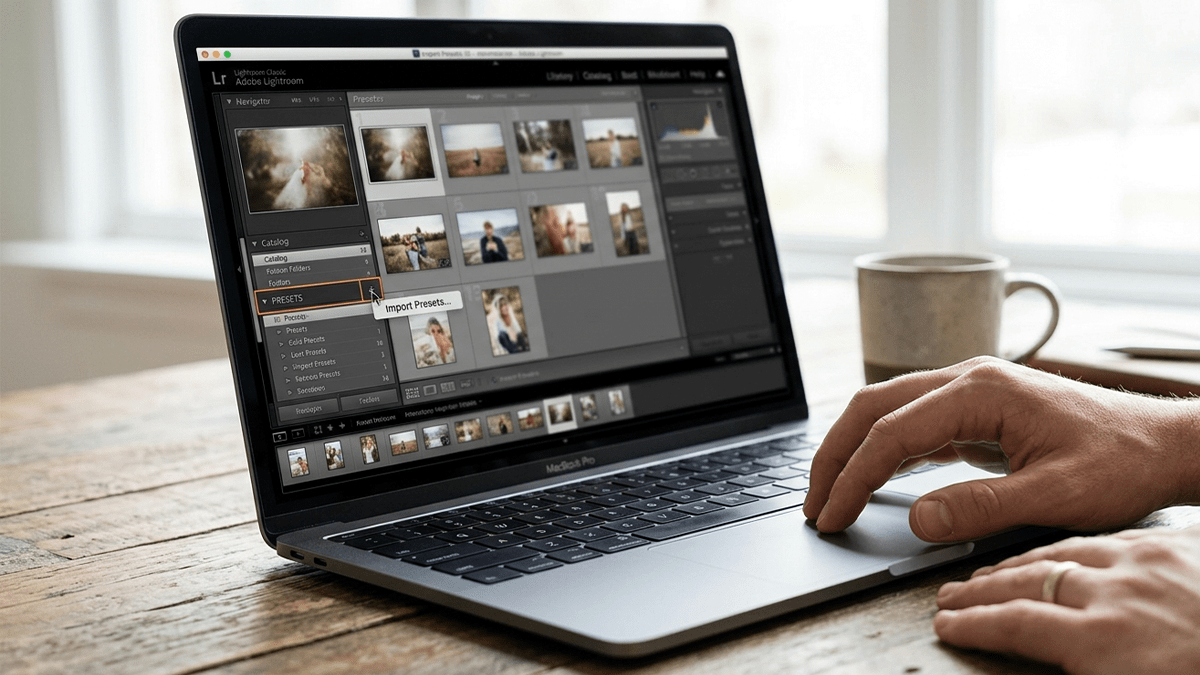
For instance, on the left side of your screen, look for the Presets panel. Click the small + (plus) icon in the top right corner of that panel.
Installing Lightroom Presets: Two Methods for Beginners,
In addition, choose ‘Import Presets ‘: File Finder opens.
Above all, Select Import Presets… from the dropdown menu.
In addition, load your files: Instant installation.
After that, find your downloaded preset files (.XMP or a .zip archive), select them, and click Import. They will instantly appear in your Presets list.
💡 A Quick Note on File Formats: Modern Lightroom presets use the .XMP format. If you bought older presets that are in the .lrtemplate format, Lightroom Classic will automatically convert them to .XMP when you import them using the steps above.
