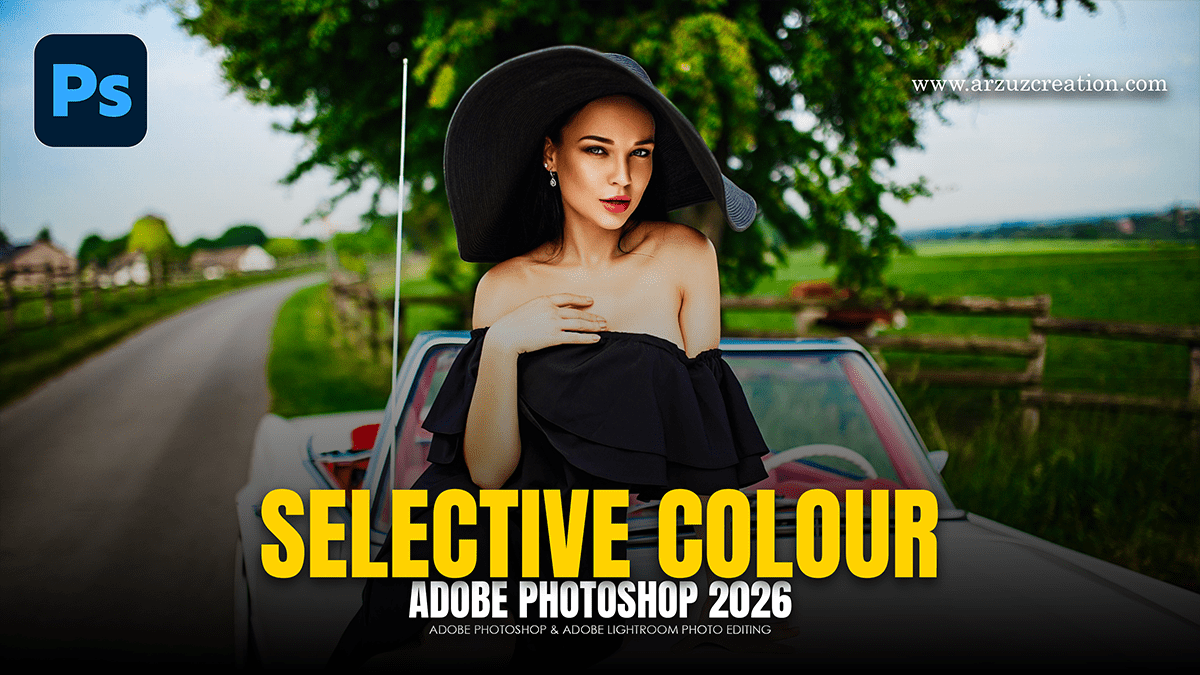
Adobe Photoshop 2026 Selective Colour Photo Editing Tutorial,

Therefore, in Adobe Photoshop 2026, “Selective Color” editing has evolved from a single tool into a suite of AI-powered workflows and new adjustment layers. Whether you want to perform professional color grading (CMYK-style) or isolate a single object’s color, the 2026 update provides more precise control.
Adobe Photoshop 2026 Selective Colour Photo Editing Tutorial,
1. New: The “Color and Vibrance” Adjustment Layer
Therefore, this is the most significant addition to Photoshop 2026. Previously, you had to use Camera Raw for these sliders; now they are available directly as a non-destructive layer.
What it does: Therefore, Adds Temperature and Tint sliders alongside Vibrance and Saturation.
Selective Use: You can use the built-in mask to apply white balance or “warming” effects only to specific parts of an image (like a subject’s skin) without affecting the background.
2. The Traditional “Selective Color” Tool
Therefore, still a powerhouse for professional photographers, this tool allows you to modify the amount of CMYK in specific color ranges (Reds, Yellows, Greens, etc.).
Absolute vs. Relative: Therefore, in 2026, improved tooltips clarify these modes. Use Relative for subtle, natural changes and Absolute for bold, dramatic shifts.
Pro Tip: To make a sky pop, select “Cyans” or “Blues” and increase the Black slider to add density, then decrease Yellow to make the blue “cleaner.”
Adobe Photoshop 2026 Selective Colour Photo Editing Tutorial,
3. AI-Powered Selection Tools:
Therefore, to edit a color selectively, you first need a perfect selection. Photoshop 2026 has upgraded these “Selection Brush” capabilities:
Object Selection Tool: Now automatically detects and masks complex objects like people or cars with one click.
Selection Brush Tool: A new tool for 2026 that allows you to “paint” a selection over an area, which then automatically snaps to edges using AI.
Harmonize: If you are compositing two images, the Harmonize button (in the Contextual Task Bar) uses AI to automatically match the selective color and lighting of your subject to the background.
4. How to Change a Specific Color (Fast Workflow)
Therefore, if you want to change one specific color (e.g., turning a red dress blue):
Select the Object: Use the Object Selection Tool to click the item.
Add Hue/Saturation: Click the Hue/Saturation icon in the Adjustments panel.
Target the Color: Therefore, click the Hand Tool icon inside the properties panel and click the color on your image.
Invert Selection (New in 2026): Therefore, use the new “Flip Range Sliders” button to quickly swap which colors are being targeted within that specific hue range.
Adobe Photoshop 2026 Selective Colour Photo Editing Tutorial,
Comparison of Selective Color Methods:
| Feature | Best For… | Key Strength |
| Selective Color Layer | Global color grading | Fine-tuning CMYK levels in shadows/midtones. |
| Color and Vibrance | White balance / Mood | Adjusting “Temperature” without Camera Raw. |
| Hue/Saturation | Changing one specific color | Total hue shifts (e.g., Green to Purple). |
| AI Harmonize | Composites / Collages | Matching a subject to a new environment. |
Would you like me to walk you through a specific tutorial, such as changing a product’s color or fixing skin tones using these 2026 tools?
