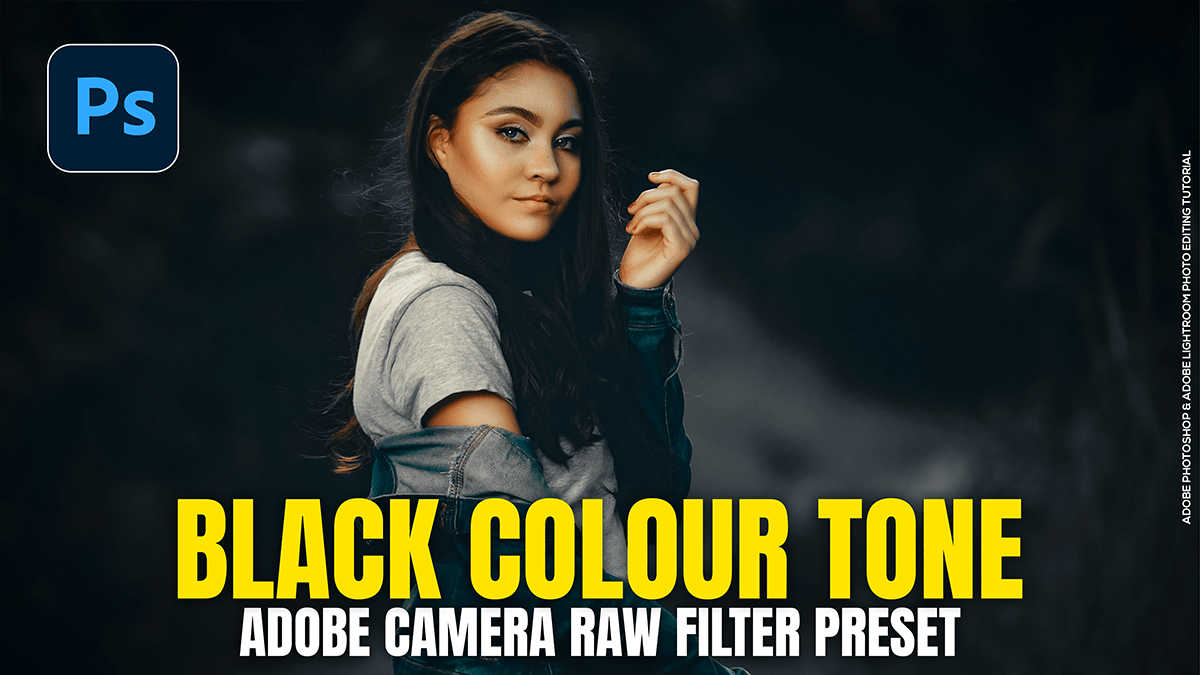
Create an Outdoor Portrait Black Colour Tone in Adobe Photoshop
Therefore, creating a “Black Tone” or “Moody Dark” look in Adobe Photoshop’s Camera Raw Filter involves desaturating distracting colors, crushing the blacks, and shifting greens toward a deeper, more atmospheric hue. This look is popular for outdoor portraits because it makes the subject pop against a dark, cinematic background.
Create an Outdoor Portrait Black Colour Tone in Adobe Photoshop

Step 1: Basic Adjustments:
Therefore, the goal here is to create a high-contrast, slightly underexposed base.
- Exposure: Decrease slightly (e.g., -0.30 to -0.70) to darken the overall scene.
- Contrast: However, Increase (e.g., +30 to +50) to add punch.
- Highlights: Decrease (e.g., -50) to recover detail in bright areas.
- Shadows: However, Increase (e.g., +20) to ensure the subject’s hair or clothes don’t disappear completely.
- Blacks: Decrease significantly (e.g., -30 to -50). This is the key to the “Black Tone” look.
Method 2: The Curve Panel (The “Matte” Effect)
Therefore, to get that professional “faded black” look rather than a harsh pitch-black, use the Point Curve.
- In other words, create a slight S-Curve for contrast.
- However, grab the bottom-left point (true black) and drag it slightly upward. This turns deep blacks into a dark charcoal gray, creating a “matte” or “moody” film aesthetic.
Create an Outdoor Portrait Black Colour Tone in Adobe Photoshop
Step 3: Color Mixer (Desaturation)
Therefore, this is where you remove the “vibrant” outdoor feel to make it moody.
- Saturation: * Greens & Yellows: However, decrease significantly (-60 to -100). This kills the bright grass and leaf colors.
- Oranges & Reds: In other words, keep these closer to neutral or only slightly desaturated to preserve the skin tones.
- Luminance: * Greens & Yellows: Decrease these to make the background foliage look dark and “inky.”
Method 4: Color Grading (Split Toning)
Therefore, add a hint of cinematic color to the shadows.
- Shadows: Push the color picker toward Blue or Teal. This adds a cool, dark vibe to the black areas.
- Highlights: Push slightly toward Orange or Gold to keep the skin tones looking healthy and warm.
Create an Outdoor Portrait Black Colour Tone in Adobe Photoshop
Step 5: Effects & Masking:
- Vignetting: In other words, go to the Effects tab and drop the Vignette to -20. This draws focus directly to your subject.
- Masking (Subject): However, if the subject becomes too dark, use the Select Subject mask tool. Increase the Exposure and Shadows specifically on the person so they stand out from the dark background.
Pro Tip: Protect Skin Tones:
In other words, if the “Black Tone” makes the skin look gray or muddy, go to the Color Mixer and increase the Luminance of the Oranges. This will make the skin “glow” against the darkened environment.
In conclusion, would you like me to explain how to save these settings as a Preset so you can apply them to other photos with one click?
