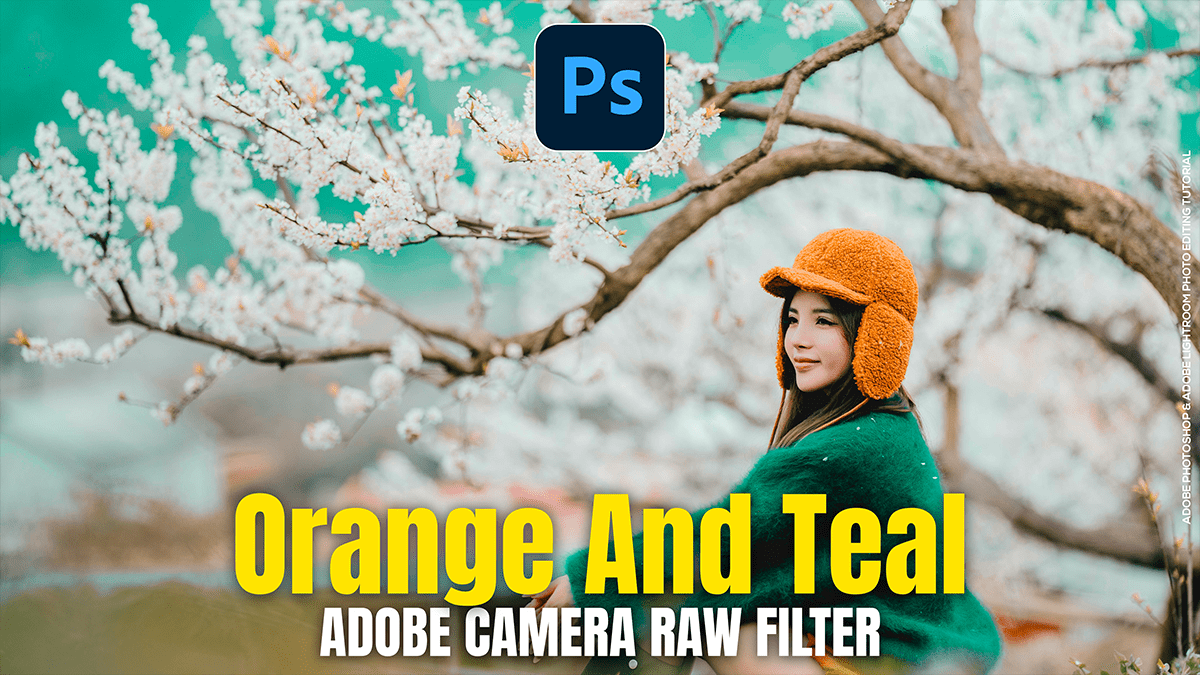
Orange and Teal: Colour Grading Camera Raw Filter Presets,
Therefore, creating an Orange and Teal look (the “Cinematic” look) is a classic color grading technique that relies on color contrast. Because orange and teal are complementary (opposite on the color wheel), they make subjects pop, especially skin tones.

Therefore, the most efficient way to do this in the Camera Raw Filter is by using the Calibration and Color Grading panels.
Method 1: The “Calibration” Shortcut (Fastest)
Therefore, this is the “secret” method professional editors use. It shifts the primary colors of the image at the source level.
- Therefore, open your image in Photoshop and go to Filter > Camera Raw Filter.
- In other words, scroll down to the Calibration panel (at the bottom).
- Blue Primary: Drag the Hue slider all the way to the left (around -100). You’ll see the blues turn teal and yellows turn orange.
- Red Primary: Drag the Hue slider to the right (around +30 to +50) to refine the oranges.
- Green Primary: Adjust the Hue slightly to the right to clean up any muddy greens.
Orange and Teal: Colour Grading Camera Raw Filter Presets,
Step 2: Precision Grading (Color Grading Panel)
In other words, if you want more control over the highlights and shadows, use the dedicated Color Grading wheels.
- In other words, open the Color Grading panel.
- Shadows: Select the Shadows wheel. Drag the middle point toward Teal/Cyan (Hue: ~200–220). Keep the saturation low at first (around 10-20).
- Highlights: Select the Highlights wheel. Drag the point toward Orange/Yellow (Hue: ~30–40).
- Blending & Balance: Adjust the Balance slider to the left if you want more teal in the image, or to the right if you want more orange.
Method 3: Refining with HSL / Color Mixer:
In other words, use this to fix specific colors, like making sure the sky is the “right” teal or skin isn’t too red.
- Hue Tab: Shift Blues toward Aqua and Yellows/Reds toward Orange.
- Saturation Tab: Increase the saturation of Orange and Aqua/Blue while slightly decreasing Greens and Magentas to keep the focus on your primary two-tone look.
Orange and Teal: Colour Grading Camera Raw Filter Presets,
Pro Tips for a Better Look:
- Fix Skin Tones: If the Calibration method makes skin look too orange, go to the Color Mixer, select Orange, and decrease the Saturation or increase the Luminance.
- Crush the Blacks: In the Basic panel, pull the Blacks slider down and slightly lift the Shadows for that “filmic” faded contrast.
- White Balance: The look works best when the image is slightly warm. Try bumping your Temp slider a few notches to the right.
Would you like me to create a step-by-step guide for a specific type of photo, like a sunset or a night street scene?
