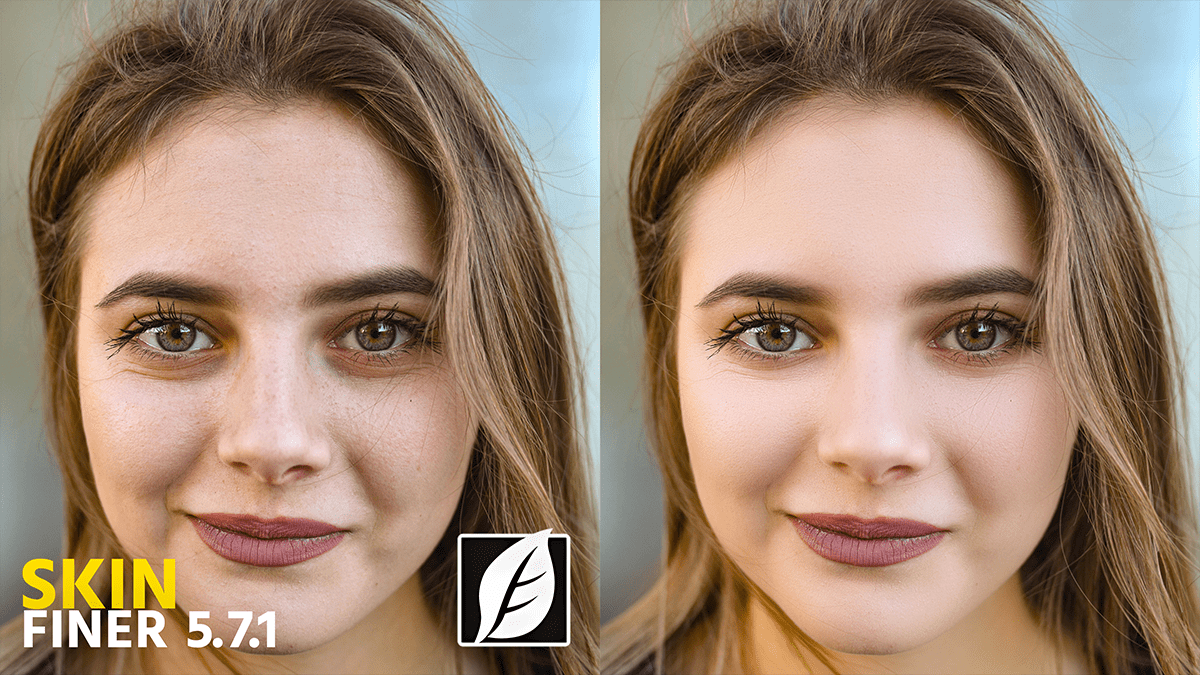
Photoshop SkinFiner 5.7.1 Update Version New Settings

Therefore, SkinFiner 5.7 (and its minor update, 5.7.1) introduced significant refinements to the AI mask and facial feature detection. While version 5.8 is the most recent current release, many users are still migrating to the 5.7 branch for its improved stability in handling profiles.
Here is a breakdown of the key settings and features introduced or enhanced in the 5.7.1 update.
Photoshop SkinFiner 5.7.1 Update Version New Settings
1. Key New Features in 5.7.1
- Enhanced Skin Mask Accuracy: Therefore, the AI-powered “Auto-Skin-Mask” has been retuned. It is now much better at differentiating between skin and clothing or hair with similar tones.
- Profile Portrait Support: This is the biggest change. Previous versions often struggled with side profiles (where only one eye/ear is visible). 5.7.1 handles “Profile” views much more effectively.
- Natural Eye Bag Reduction: Therefore, the algorithm for the “Eye Bags” slider was rewritten to flatten puffiness without making the skin look “blurry” or losing the natural shape of the eye area.
2. Optimized Settings Guide:
Therefore, to get the most out of version 5.7.1, try these specific setting adjustments:
The Skin Mask Panel:
- Auto-Masking: Therefore, leave this option enabled, but check the “Restrict to Human Body” toggle (located in the mask settings). This prevents the filter from accidentally smoothing backgrounds that have skin-like colors.
- Feathering: Keep this around 15–20%. Version 5.7.1 has sharper mask edges than version 4.0, so a little feathering helps blend the retouching into the hairline.
Photoshop SkinFiner 5.7.1 Update Version New Settings
The Skin Imperfections Panel (New Logic)
- Eye Bags Slider: Therefore, start at 30%. Because the 5.7.1 algorithm is stronger, pushing this to 100% can sometimes look “hollow.”
- Fine/Medium/Coarse Texture: * Fine: Use this to clear pores (keep around 40%).
- Medium: Therefore, use this for acne or bumps (keep around 50%).
- Coarse: Version 5.7.1 allows you to keep this lower (20-30%) to preserve the natural “bone structure” of the face while still getting smooth skin.
Skin Tone Panel
- Uniformity Sliders: Therefore, use the Redness and Yellow sliders to even out skin blotchiness. In 5.7.1, these are more sensitive, so small moves (5–10 points) are usually enough.
Photoshop SkinFiner 5.7.1 Update Version New Settings:
3. Best Workflow for Photoshop:
Therefore, if you are using it as a Photoshop Plugin:
- Smart Filter: Always convert your layer to a Smart Object before launching SkinFiner. Version 5.7.1 fully supports Photoshop’s Smart Filter architecture, allowing you to go back and change your settings anytime.
- Opacity Blending: If the effect feels too “plastic,” don’t lower the sliders in the plugin—simply lower the Layer Opacity in Photoshop to about 75-80% for a more professional, high-end look.
Note: If you find 5.7.1 feels slow, go to Settings > Performance and ensure GPU Acceleration is enabled. This version is optimized for DirectX 11.1+ (Windows) or Metal (Mac).
Would you like me to help you create a custom preset file description based on these settings for your specific type of photography (e.g., weddings vs. high-fashion)?
