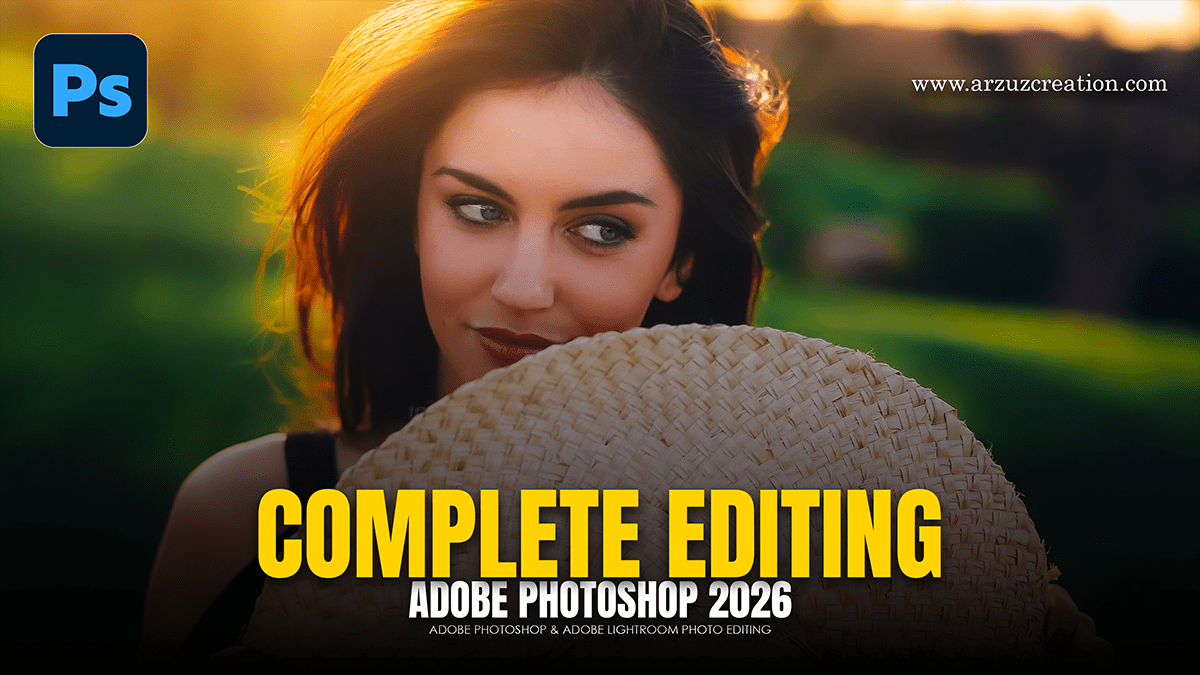
Complete Photo Edit and Colour Grading in Adobe Photoshop 2026,

Therefore, A complete photo editing workflow in Photoshop 2026 combines classic non-destructive techniques with the latest agentic AI tools. In other words, whether you are using the desktop app or the new AI Assistant on web and mobile, here is the professional sequence for a “complete” edit.
Complete Photo Edit and Colour Grading in Adobe Photoshop 2026,
1. Global Adjustments (The Foundation)
Therefore, before touching individual pixels, set the overall tone.
Camera Raw Filter: In other words, start here (found in the Filter menu). In 2026, Adobe Camera Raw (ACR) includes “AI Denoise” and “Super Resolution” for upscaling. Adjust Exposure, Contrast, and White Balance.
Smart Objects: Always right-click your layer and select Convert to Smart Object. This ensures every filter you apply remains editable and non-destructive.
New Adjustment Layers: Therefore, use the dedicated layers for Clarity, Dehaze, and Grain (recently added as adjustment layers) to control texture without affecting the original image.
2. AI Retouching & Cleanup
In other words, Modern Photoshop has moved beyond the Clone Stamp for most basic removals.
Generative Fill: However, select a distraction and use the Contextual Task Bar to “Remove People” or “Remove Powerlines” instantly.
AI Assistant (2026 Feature): You can now simply type (or say) “Remove the reflections from the window” or “Make the background more blurred,” and the assistant will execute the multi-step mask and fill for you.
AI Markup: However, on the web version, draw directly on an area and prompt the AI to add or change specific elements (e.g., “Add a sunrise over the mountains”).
Complete Photo Edit and Colour Grading in Adobe Photoshop 2026,
3. Targeted Enhancements:
Luminosity Masking: However, use these for precise control over highlights and shadows without affecting midtones.
Dodge & Burn: For instance, create a new layer filled with 50% Gray (set to Overlay blend mode). Use a soft white brush to lighten (Dodge) and a black brush to darken (Burn) specific facial features or landscape details.
Neural Filters: Use the Portrait filter for “Skin Smoothing” or “Expression” adjustments, and Landscape Mixer to change the season or time of day.
4. Color Grading:
For instance, this is where you establish the “vibe.”
Color Balance & Selective Color: Fine-tune specific hues (e.g., making the greens in a forest deeper or warmer).
Curves (Soft Light Hack): Add a Curves layer, set the blend mode to Soft Light, and reduce opacity to 55%. This provides a professional-grade boost to contrast and saturation.
Color Lookup (LUTs): Apply cinematic color profiles to unify the look of the entire image.
Complete Photo Edit and Colour Grading in Adobe Photoshop 2026,
5. Final Polishing & Export:
High Pass Sharpening: Duplicate your final composite, apply Filter > Other > High Pass, set it to a low radius (1-2px), and change the blend mode to Overlay for crisp details.
Generative Expand: If you need to change the aspect ratio for social media (e.g., from 4:5 to 9:16), use the Crop tool with “Generative Expand” to let the AI build out the missing parts of the scene.
Export As: Always use the Export As menu to ensure your color profile is set to sRGB for web compatibility.
Pro Tip for 2026:
In conclusion, if you’re in a rush, use the new Firefly AI Assistant. It can orchestrate these steps for you—try prompting: “Clean up the skin, give it a warm vintage color grade, and expand the canvas to vertical for Instagram.”
